Product options
Product options let guests choose sauces, sides, extra toppings, ingredients to remove, half and half, or write a comment, directly when they add a dish. They are part of Food Online 6.1.0 and later, in both the standard and the premium plugin.
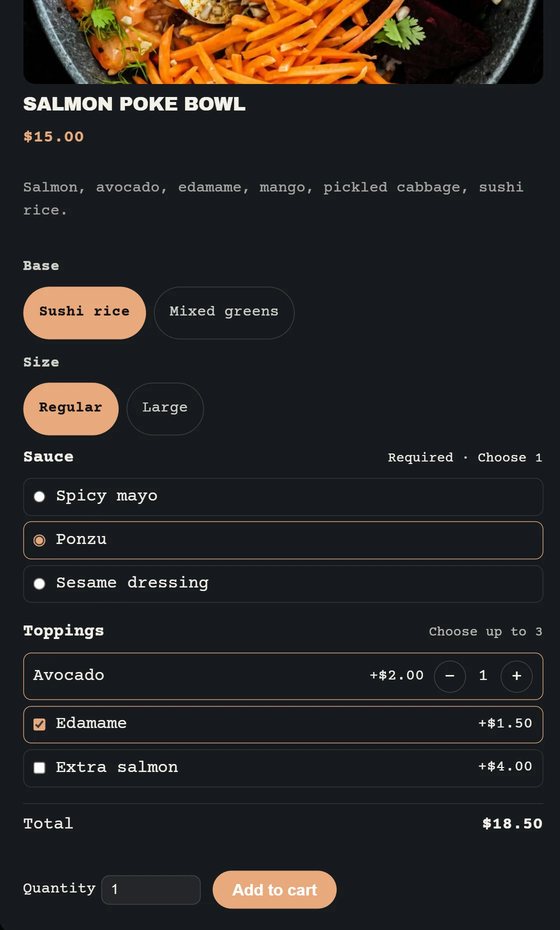
Two option groups on a poke bowl: Sauce (Choose one, required) and Toppings (Choose several, up to 3, with a quantity for avocado). Try it in the live demo.
Create option groups
Section titled “Create option groups”Go to Products → Options (Food Online) and click Add option group. Each group has:
| Setting | What it does |
|---|---|
| Name and Help text | Shown to the guest, for example Sauce or Extra toppings. |
| Type | Choose one (a sauce, a side, how it is cooked), Choose several (extra toppings, remove ingredients), Comment (free text) or Half and half (for example pizza). |
| Required, Min choices, Max choices | How many choices the guest must or may pick. 0 as maximum means no limit. |
| Choices | Enter the choices with an Extra price, an Image, Preselected, Max per choice (the guest can take more than one of the same) and Stock (empty means unlimited). |
| Products in a category | Instead of typing choices, take them from a product category, for example Drinks. Choose whether the choice costs the product price or is included (0). |
| Show only when | Show the group only when one of the ticked choices is picked in a group above. |
| Use on | All products, some categories or some products, with Not on these products for exceptions. |
| Active | Turn a group off without deleting it. |
For Half and half, choose whether the price is the price of the most expensive half or the average of the two halves. For Comment, set the maximum number of characters and a placeholder.
Click Save options when you are done.
On a single product
Section titled “On a single product”The product edit page has a Food Online options tab. It shows which groups apply to the product (from all products, its category or not at all), and lets you set a group to Always on this product or Never on this product.
Where guests see them
Section titled “Where guests see them”- Food Online Menu block: in the product popup, or inline in the menu, following the block’s display settings.
- Classic menu: in the product popup. When popups are off for the product type, the options are shown under the product, and the first click on the add button opens them. See Classic menu.
- Product page, cart, checkout, orders and emails: the chosen options and their prices are shown on each line.
If a choice runs out of stock, the guest is asked to choose again.
Other add-on plugins
Section titled “Other add-on plugins”Food Online options are hidden on products that use WooCommerce Product Add-Ons or YITH add-ons, so the two never show at the same time. See Compatibility.
For developers
Section titled “For developers”fdoe_get_order_item_options( $item )returns the chosen options of an order line.- Filters
fdoe_product_options_line_textandfdoe_product_options_order_item_metachange how the options are written on the order line.