Pickup
Set up pickup
Section titled “Set up pickup”- WooCommerce Local pickup. Go to WooCommerce → Settings → Shipping → Local pickup, turn on Enable local pickup and add at least one pickup location. WooCommerce only offers pickup in the Checkout block when a location is enabled. Local pickup applies to the whole store; it is not added to a shipping zone. See WooCommerce Blocks: Local Pickup.
- Menu page. In Menu Flow, turn on Modes → Allow pickup.
- Checkout. In Food Online Shipping Mode, turn on pickup under Checkout Behavior, and choose the pickup fields under Checkout Fields, for example only name and phone.
Do not also add the old Local pickup method to your shipping zones. Guests would then see pickup twice.
Pickup time
Section titled “Pickup time”Turn on Time Picker → Time Picker for Pickup Orders → Enable and add Time Picker Slots for pickup in the Availability Schedule. The guest then chooses a time on the menu page or in the checkout. See Opening hours and order times.
Several restaurants
Section titled “Several restaurants”If you have more than one restaurant, add them under Food Online Premium → Pickup Locations with title, address and email.
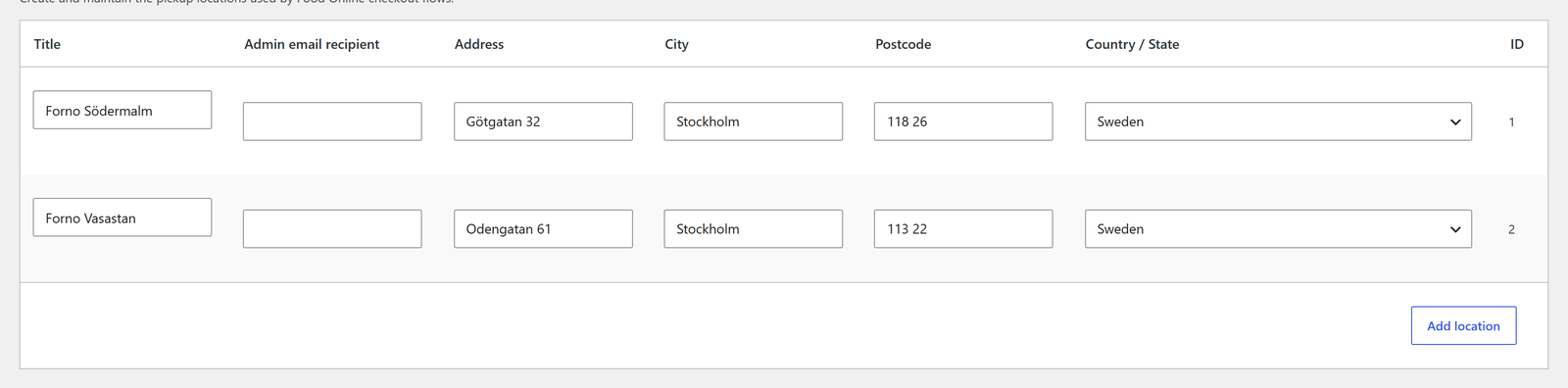
- The guest chooses a location in the checkout, together with the pickup time. Turn on Show pickup location selector in Shipping Mode. The selector is part of the pickup time picker, so the pickup time picker must be on.
- Hours per location: add Availability Schedule rows for each location in the Pickup Location column.
- Order email per location: the New order email for a pickup order goes to the email address of the chosen location.
- On the order: the location’s name and address are shown on the admin order page and in the emails.
