Opening hours and order times
Three settings sections work together:
| Section | Decides |
|---|---|
| Availability Schedule | When you take orders: days, hours, modes, locations and which products. |
| Time Picker | Whether the guest chooses a time, and how the times are offered. |
| Order Time Management | How long an order takes, so that the first time and the expected time are realistic. |
All are under WooCommerce → Settings → Food Online Premium.
Opening hours: the Availability Schedule
Section titled “Opening hours: the Availability Schedule”Each row in the Availability Schedule is an open period:
| Column | Use |
|---|---|
| From, To | The open hours, for example 11:00–21:00. |
| Weekday or Single Date | Which days. Use Single Date for a holiday or a special day. |
| Mode | Pickup, Delivery, Eat at Restaurant, or Default (when no mode is used). |
| Application | What the row controls, see below. |
| Pickup Location | Hours for one restaurant when you have several. |
| Product Categories, Product Tags | Hours for some products only, for example lunch dishes or alcohol. |
The Application decides what the row is used for:
- Time Picker Slots – the times guests can choose. These are your ordering hours.
- Place Order / Menu by Mode – when orders can be placed, and which categories are shown in each mode (“menu by mode”).
- Dropdown Selector – when each mode is offered in the classic delivery selector.
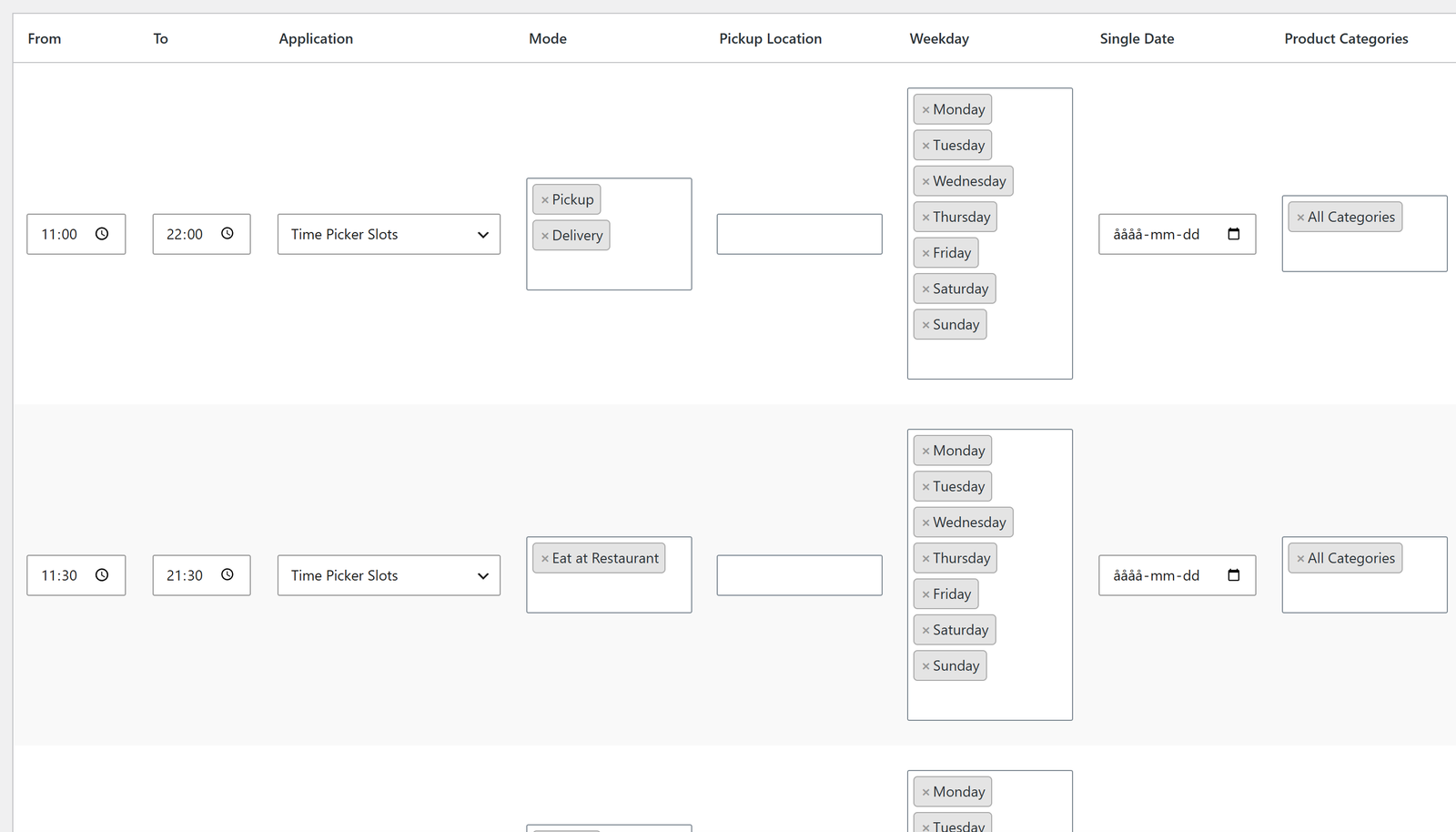
Rules worth knowing:
- A schedule for a category or tag on a weekday closes that category or tag on all other weekdays. Add every day it should be available.
- When a row has both categories and tags, a product must match both.
- If the cart contains a product with its own schedule, only times that fit that schedule are offered.
Show the opening hours
Section titled “Show the opening hours”In Menu Flow, the Opening hours panel shows the hours at the end of the top bar, for example Open now · until 22:00. Choose From the Availability Schedule (uses the Time Picker Slots rows for the current mode) or Free text.
A menu per mode or time of day
Section titled “A menu per mode or time of day”To show different categories for delivery, pickup and eat in, or for lunch and dinner, add Place Order / Menu by Mode rows with the categories, then turn on Menu Filtering → Enable menu filtering by selected mode in Menu Flow.
Time Picker
Section titled “Time Picker”Turn on the time picker per mode under Time Picker Settings:
- Time Picker for Pickup Orders → Enable (also used for eat in)
- Time Picker for Delivery Orders → Enable
For each mode, set the Step between times, whether to show As soon as possible, and whether to Postpone the first time by the preparation time (see below).
General settings:
- Selectable days – how many days ahead guests can order.
- Enable maximum orders or items per time slot – stop taking orders for a time when it is full. You can count only items from some categories, for example pizzas.
- Preselect closest timeslot, Show time ranges? and Date format.
The guest picks the time on the menu page (in Menu Flow) or in the checkout. The time follows the order and is shown on the admin order page and in the emails.
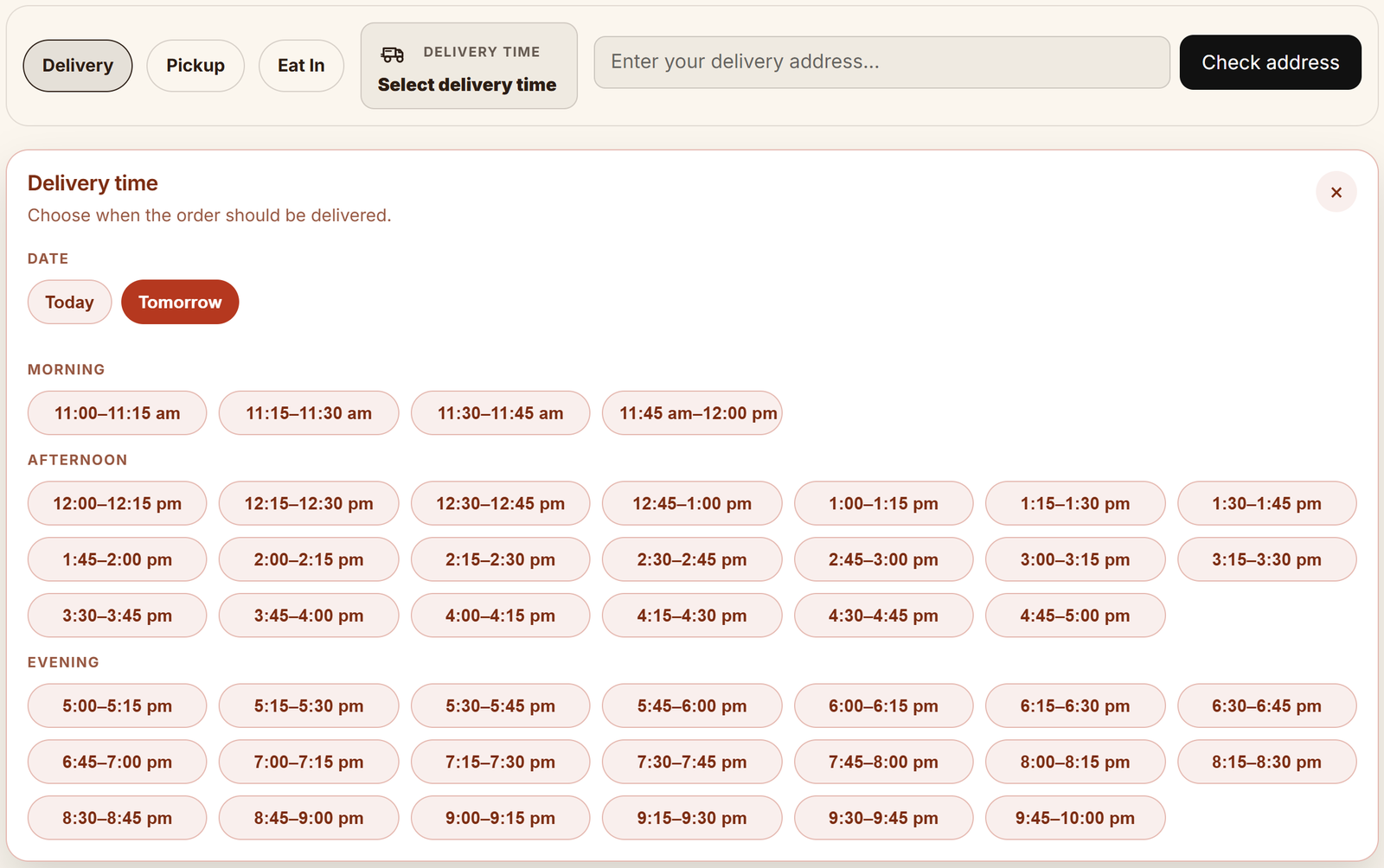
In the Checkout block, the time picker can look like drop-down lists or like the menu page. See Checkout reference.
Order Time Management
Section titled “Order Time Management”Calculates when an order is ready or delivered.
- Preparation time – fixed per order, or per product (set on each product). Per order uses the product with the longest time; per order item adds the times up.
- Extra time – minutes added per order or item already in Processing, so that busy times push the first time back. You can count only some categories.
- Time until ready per mode: preparation time, plus extra time, plus (for delivery) a fixed shipping time or a driving time calculated by Google.
Where the time is used:
- Menu Flow ETA shows the expected time in the order bar and the mini cart.
- Postpone in the time picker moves the first time back by this time.
- Implementation adds the time to the customer’s Processing and Completed emails, the New order email and the thank-you page.
Calculated driving times need a Google key, see Address check and Google APIs.