Classic menu and checkout
The classic setup uses shortcodes for the menu and the classic [woocommerce_checkout]. It works as in earlier versions, and the classic menu can now use the same designs as the block. For new pages we recommend Menu Flow.
Classic settings are under WooCommerce → Settings → Food Online Premium: Classic Menu & Shop Page, Classic Menu Styling, Shop Menu Categories, Classic Delivery Flow, the classic part of Checkout, and Advanced. They do not affect the Food Online blocks. Modes, opening hours and times work as described in Delivery, Pickup, Eat in and Opening hours and order times.
Showing the menu
Section titled “Showing the menu”- Shop page (classic themes): Classic Menu & Shop Page → Main shop page → Show menu, or Show only delivery feature to keep the WooCommerce shop and only add the delivery selector. With a block theme, use a Product Catalog template instead.
- Any page: add
[foodonline]. If your theme or another plugin changes the WooCommerce product loop, use[foodonline2].
On the shop page, Shop Menu Categories chooses and orders the categories. With shortcodes, use the attributes below.
Menu shortcodes
Section titled “Menu shortcodes”[foodonline] and [foodonline2] show the full menu with categories, mini cart and the delivery selector.
| Attribute | Example | Description |
|---|---|---|
categories |
categories="pizza,kebab,salad" |
Only these categories, in this order. Use the category slugs. |
tags |
tags="food,drinks" |
Only products with these tags. |
ids |
ids="12,34" |
Only these products. |
orderby |
orderby="title" |
menu_order (default), title, price, date, id, popularity, rating or rand. |
order |
order="desc" |
Sort direction. |
template |
template="arcade" |
valdemar-dark, ellen-noble, einars-fusion, arcade or street. Default: Menu Template setting. |
layout |
layout="2020" |
onecol, twocols or 2020. Default: Menu Layout setting. |
category_image |
category_image="no" |
yes or no. Default: Category Images setting. |
Attributes can be combined: [foodonline categories="seafood" template="street"]. If several menu shortcodes are on one page, the first one that sets template, layout or category_image decides.
Use straight quotes ("), not curly quotes. Watch out when copying shortcodes from other pages. If sorting does not update, read this topic.
Building your own layout
Section titled “Building your own layout”These shortcodes let you build a menu page with blocks, Elementor or another page builder:
| Shortcode | Shows |
|---|---|
[foodonline_menu] |
Only the menu, without bars or cart. Same attributes as [foodonline]. |
[foodonline_minicart] |
The mini cart. |
[foodonline_delivery] |
The delivery selector and address check. Not shown on pages with [foodonline] or [foodonline2], which already include it. |
[foodonline_timepicker] |
The time picker, for example on a custom checkout page. |
[foodonline_delivery] follows Classic Delivery Flow but can override it:
| Attribute | Values |
|---|---|
delivery_mode |
toggle_switch, dropdown, only_pickup, only_delivery, disable |
dropdown_choices |
pickup, delivery, eathere |
default_delivery_mode |
pickup, delivery, eathere |
selection_mandatory |
yes, no |
validation |
postcode, address, none |
start_page |
yes, no |
message_format |
print, popup |
Layout and templates
Section titled “Layout and templates”Classic Menu Styling → Menu Layout: One Column, Two Columns or 2020 Template.

Templates
Section titled “Templates”Classic Menu Styling → Menu Template gives the classic menu the colors, fonts and card style of a Food Online Menu block template: Valdemar Dark, Ellen Noble, Einar’s Fusion, Arcade or Street. The layout still decides the structure. While a template is active, it replaces the classic menu colors.
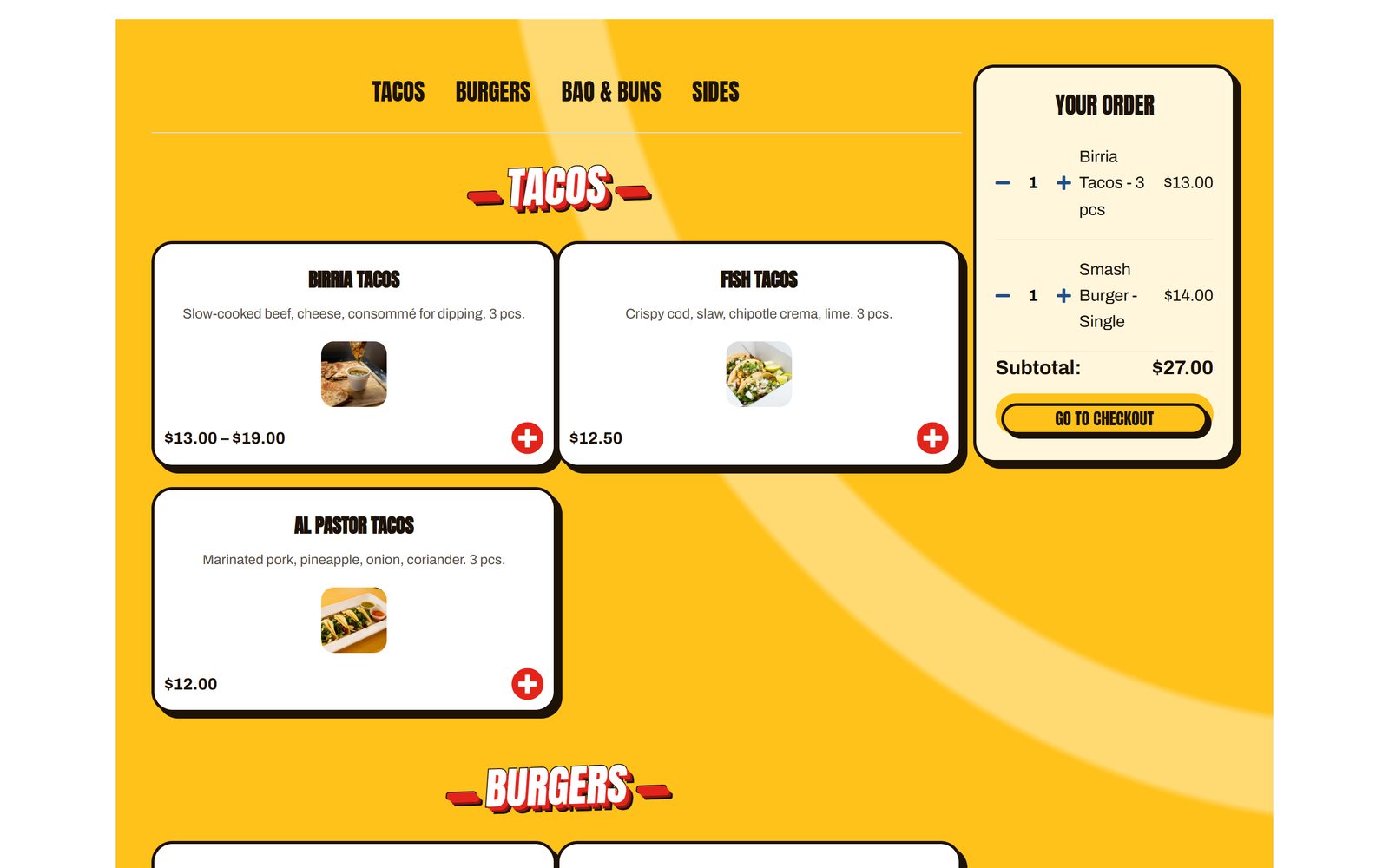
Other layout options
Section titled “Other layout options”- Show Menu like Accordion? – one category at a time.
- Show Sub Categories along with Parent Category? – subcategories under their parent instead of as separate categories.
- Top Bar – delivery selector, address form, order time, cart link and an info icon above the menu. Without it, these are placed in the right sidebar.
- Categories Left Menu / Categories Top Menu – category navigation, optionally scrollable, and a separate top menu on mobile.
- Bottom Mobile Bar – links to cart, checkout and the menu on mobile.
Menu color and background, item separators, title icon, the add-to-cart icon, product image size and type, short description, category images and descriptions, and sale badge.
Product popup and mini cart
Section titled “Product popup and mini cart”Under Classic Menu & Shop Page: popups per product type (simple, variable, grouped, composite, bundle), the popup source and content, mini cart style (popup, basic, theme default or +/- buttons) and order, search, sticky sidebars, smooth scrolling and add-to-cart confirmation.
Bottom bar icons
Section titled “Bottom bar icons”The mobile bottom bar uses Font Awesome icons. Change them with additional CSS:
/* Cart link */.fdoe-handheld-footer-bar ul li.shop > a::before {  content: "\f57b";}
/* Menu link */.fdoe-handheld-footer-bar ul li.minicart > a::before {  content: "\f07a";}
/* Checkout link */.fdoe-handheld-footer-bar ul li.fdoe_checkout_2 > a::before {  content: "\f061";}
Classic Delivery Flow
Section titled “Classic Delivery Flow”The delivery selector and address check on the classic menu page, under Classic Delivery Flow.
Menu page delivery selector
- Classic delivery selector – a switch (pickup/delivery), a drop-down (pickup, delivery, eat in), only delivery, only pickup, or none.
- Dropdown Selector Choices and Default delivery mode.
- User selection mandatory? – the guest must choose a mode before ordering. Start with delivery selection page? shows a start page with the modes.
- Empty cart on selection? – empties the cart when the mode changes.
- Display menu by mode? – a menu per mode, from Place Order / Menu by Mode schedules.
Address validation & maps
- Delivery Address & Post Code Validation – address check, postcode check or none.
- Geolocate user position?, Pick Delivery Location from Map and Allow users to bypass address validation?
- Google Maps API Key and Google APIs, see Google APIs.
- Feedback: colors, popup or printed message, and the shipping cost in the message.
Classic checkout
Section titled “Classic checkout”With Checkout → Checkout engine set to Classic checkout, Food Online adds the mode, pickup location and time picker to [woocommerce_checkout]:
- Pickup Location Placement and Time Picker Placement – where on the page they appear.
- Show only the best shipping method? – shows only the cheapest available shipping method.
- Classic checkout fields – fewer fields for pickup, delivery and eat in (for example Only Table Number for eat in), and locked address fields after an address is validated.
- Extra? Popup (under Classic Menu & Shop Page) – offers featured simple products as extras when the guest goes to checkout.
For pickup with the classic checkout, add the Local pickup shipping method to all your shipping zones, including Locations not covered by your other zones.
Advanced
Section titled “Advanced”Advanced has options for the classic menu and checkout: lazy loading images, a loading skeleton, multiple shortcodes per page, preloading popups, quantity buttons, sorting by title, worldwide address suggestions, browser geolocation, checkout errors and skipping delivery address validation.
Delete Food Online options and transients on uninstall must be off when you update.