Menu page and design
Menu Flow or block by block
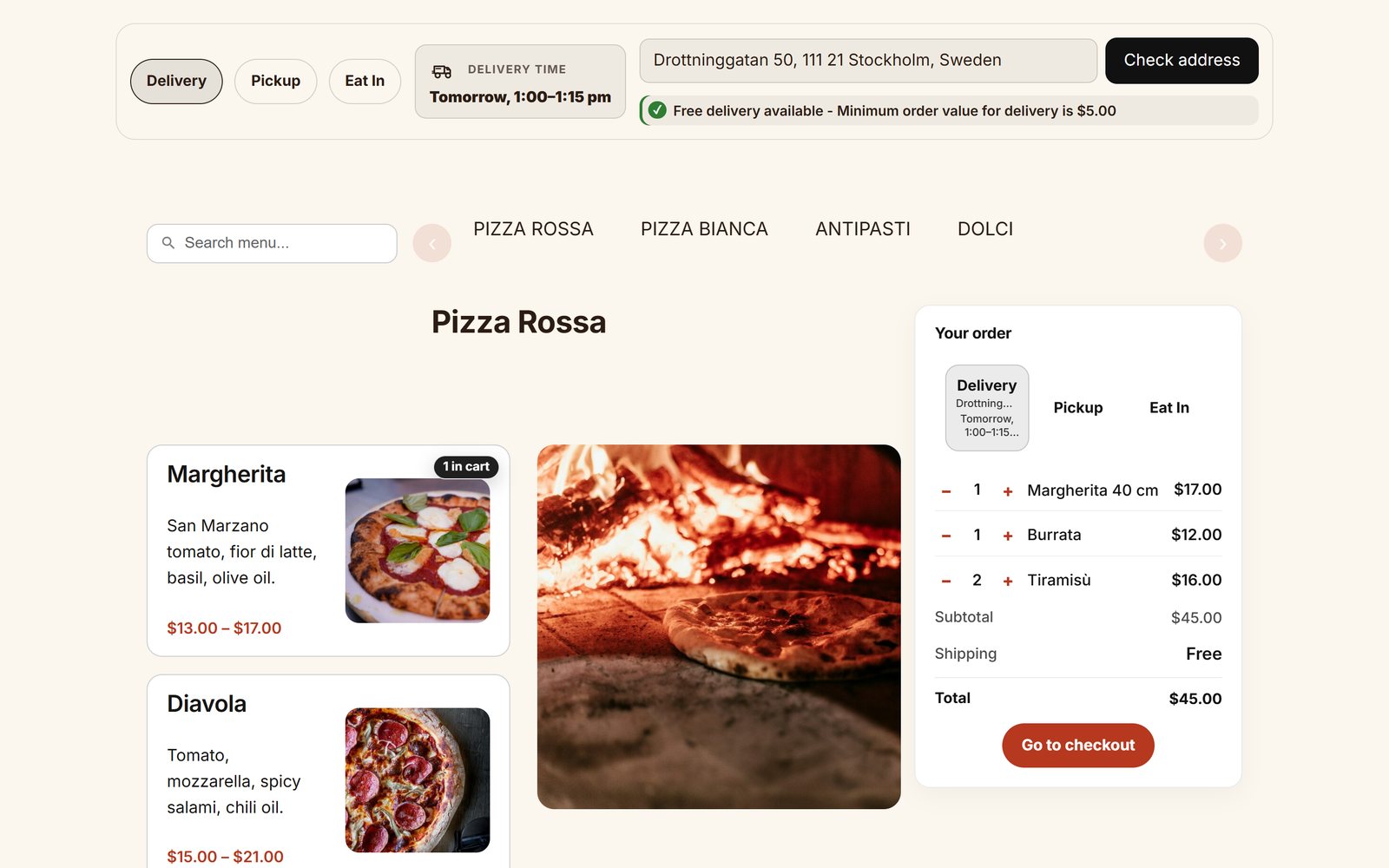
Section titled “Menu Flow or block by block”Menu Flow (recommended). One Food Online Menu Flow block gives you the whole ordering page: an order bar with mode, address, time and opening hours, and the menu with mini cart. The parts are connected, so the mode, address and time the guest picks control the menu, the mini cart and the checkout.
You can change Menu Flow like any group of blocks: move or remove the blocks inside it, and add your own blocks to the order bar, such as the site logo, site title, navigation, search, buttons or the WooCommerce customer account.
Block by block. Place Food Online Menu and Food Online Address Checkup as separate blocks, and build the layout around them with ordinary WordPress blocks such as columns, groups, headings and images. Use this when you only need a menu, or an address check on a landing page.
| Block | On its own | Inside Menu Flow |
|---|---|---|
| Food Online Menu | Yes | Yes |
| Food Online Address Checkup | Yes | Yes |
| Menu Flow Top Bar, Menu Mode Selector, Menu Flow Time Picker, Menu Flow ETA | No | Yes |
The mode selector, time picker and ETA only work inside Menu Flow, because Menu Flow holds the choices they share.
Designs
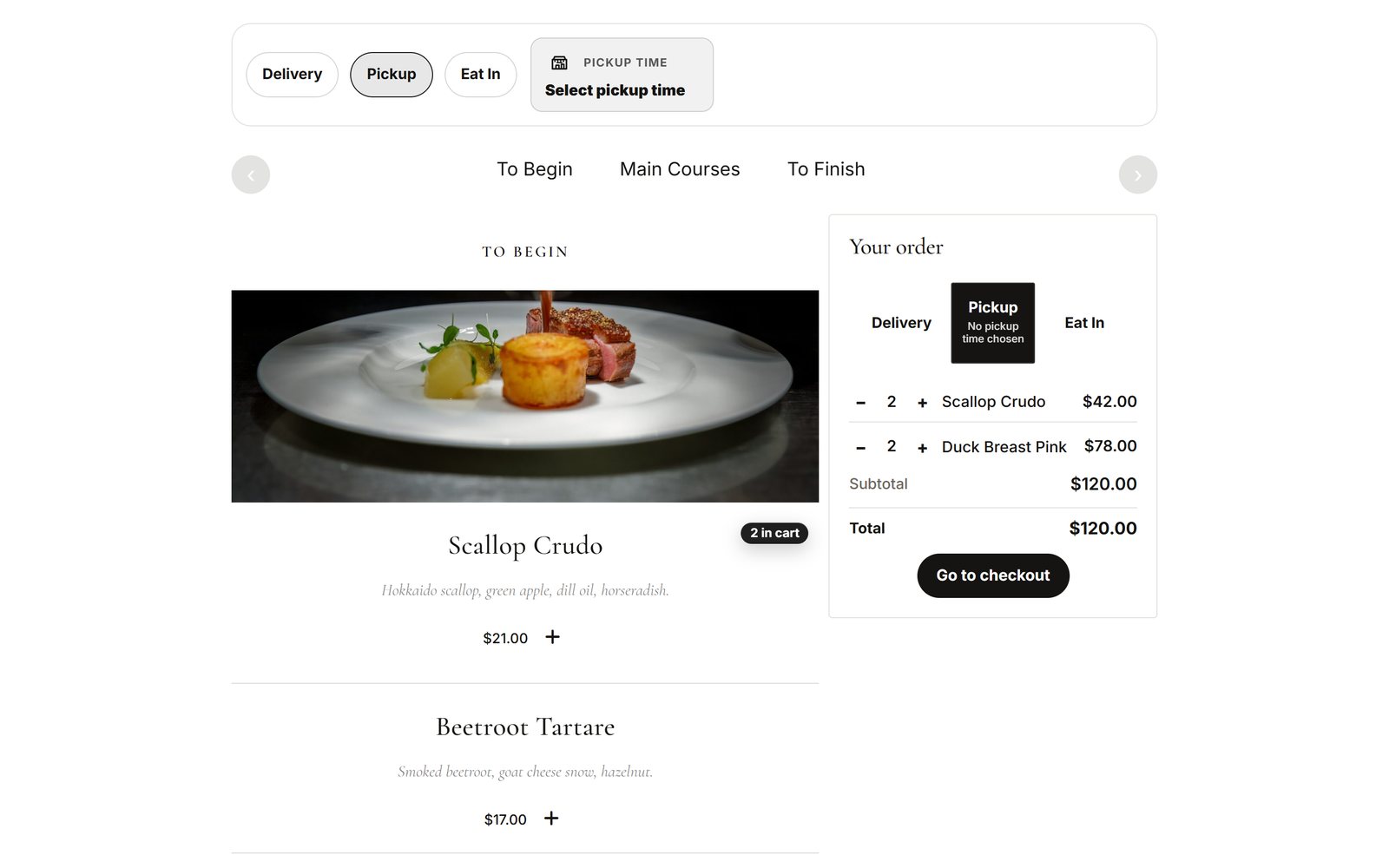
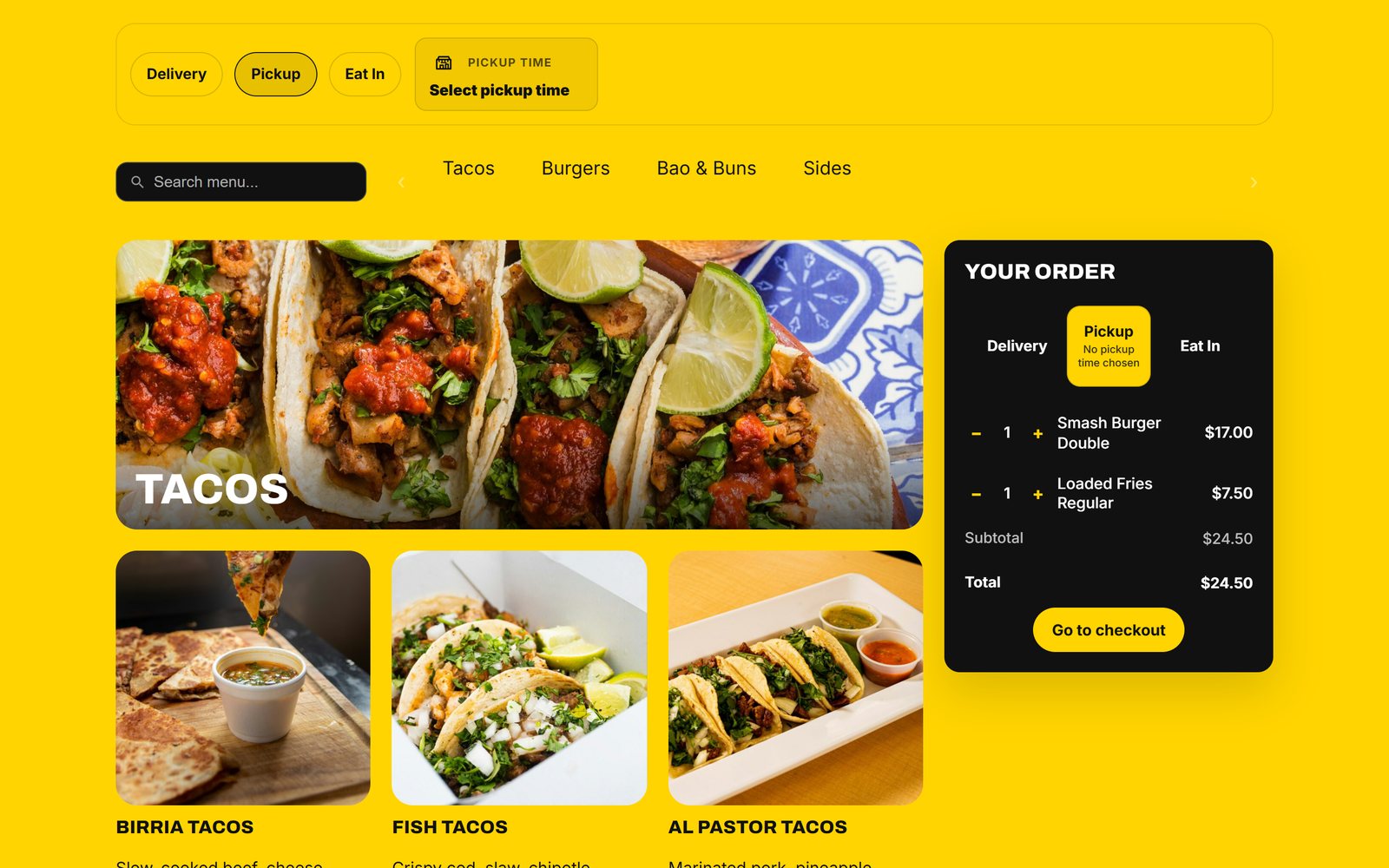
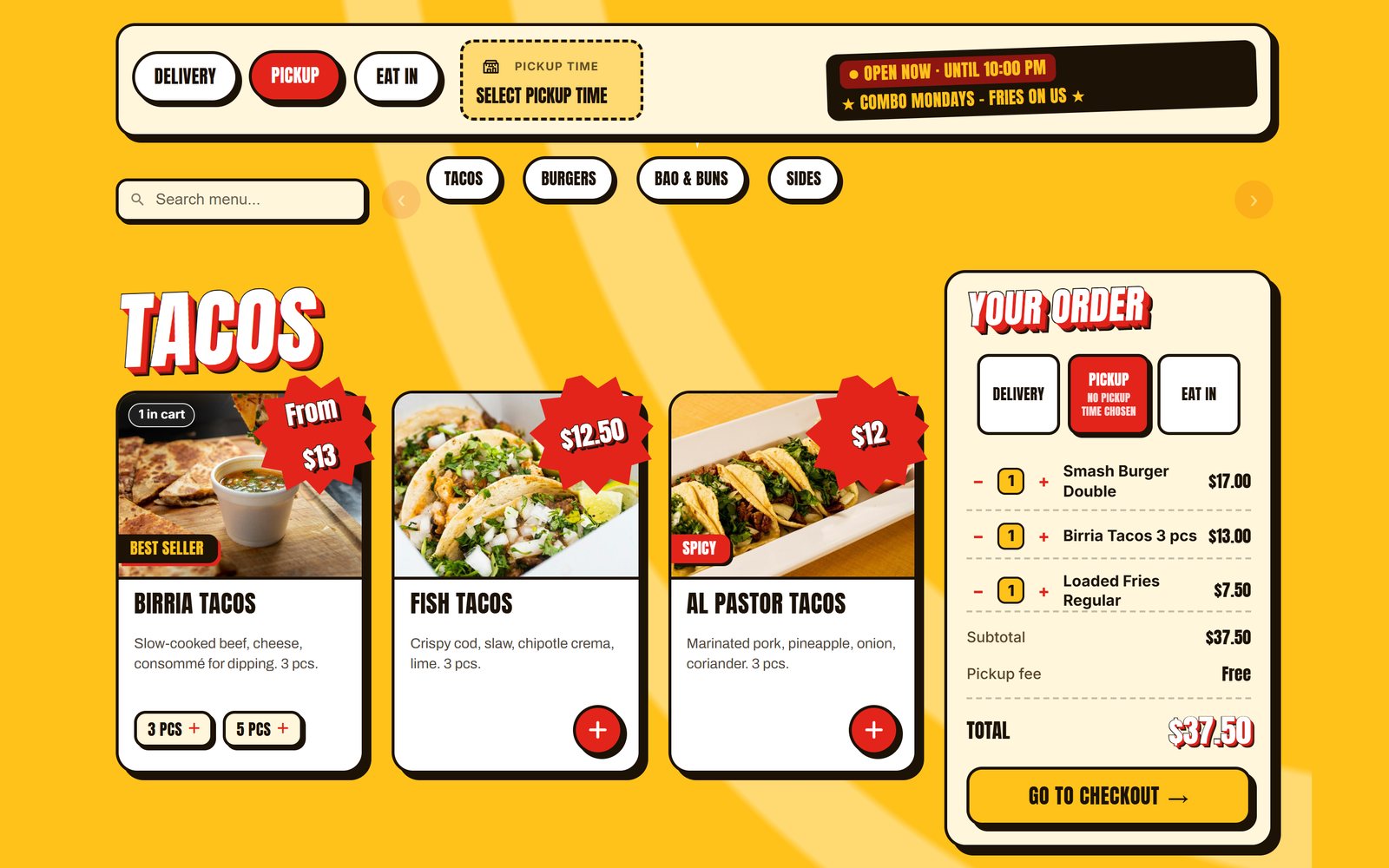
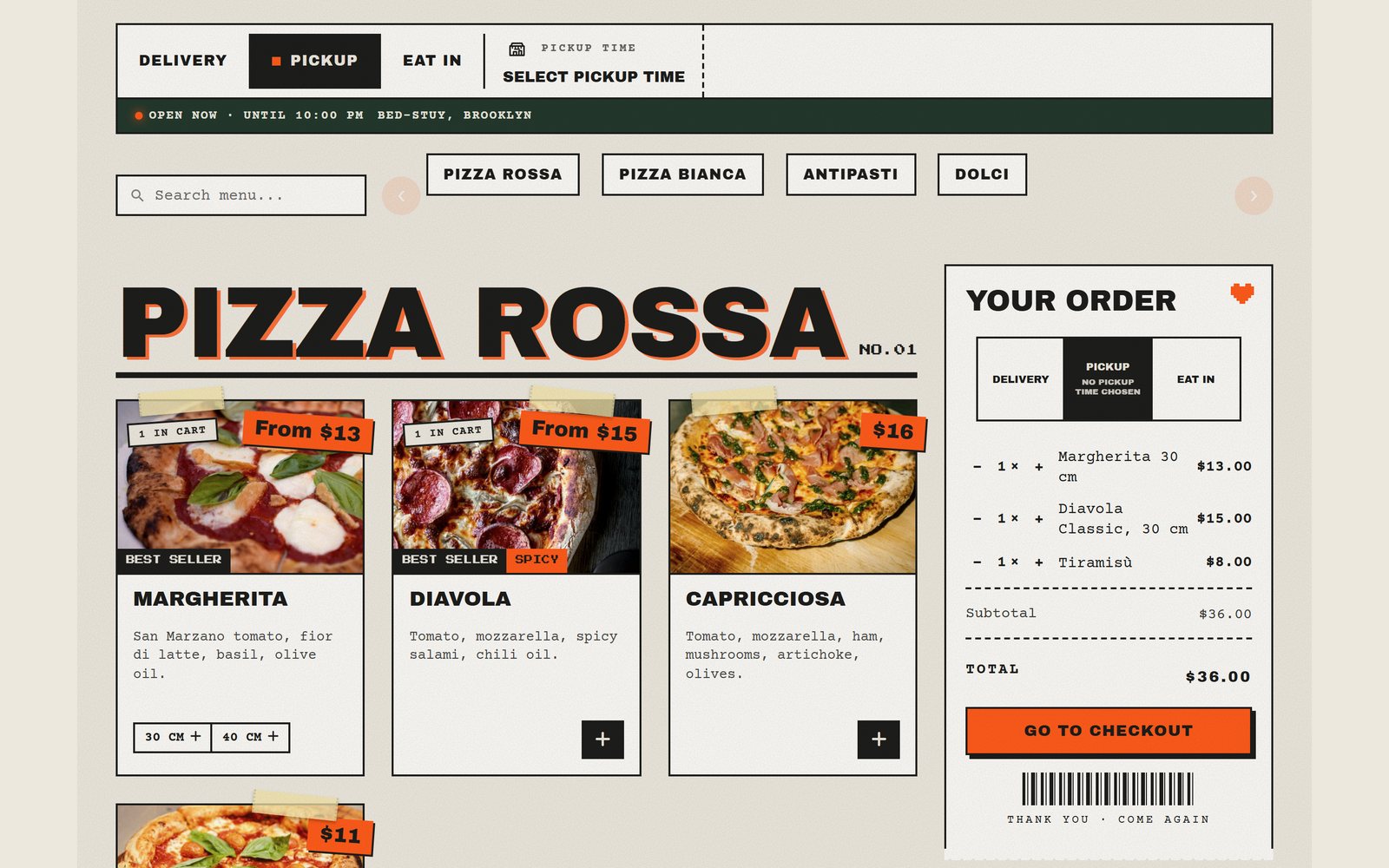
Section titled “Designs”Select the Food Online Menu block and choose a design under Display Settings → Select layout template:
- 2026 Template – a ready-made design. Pick one accent color (Mini cart → 2026 template accent); categories, images and the product popup are laid out for you.
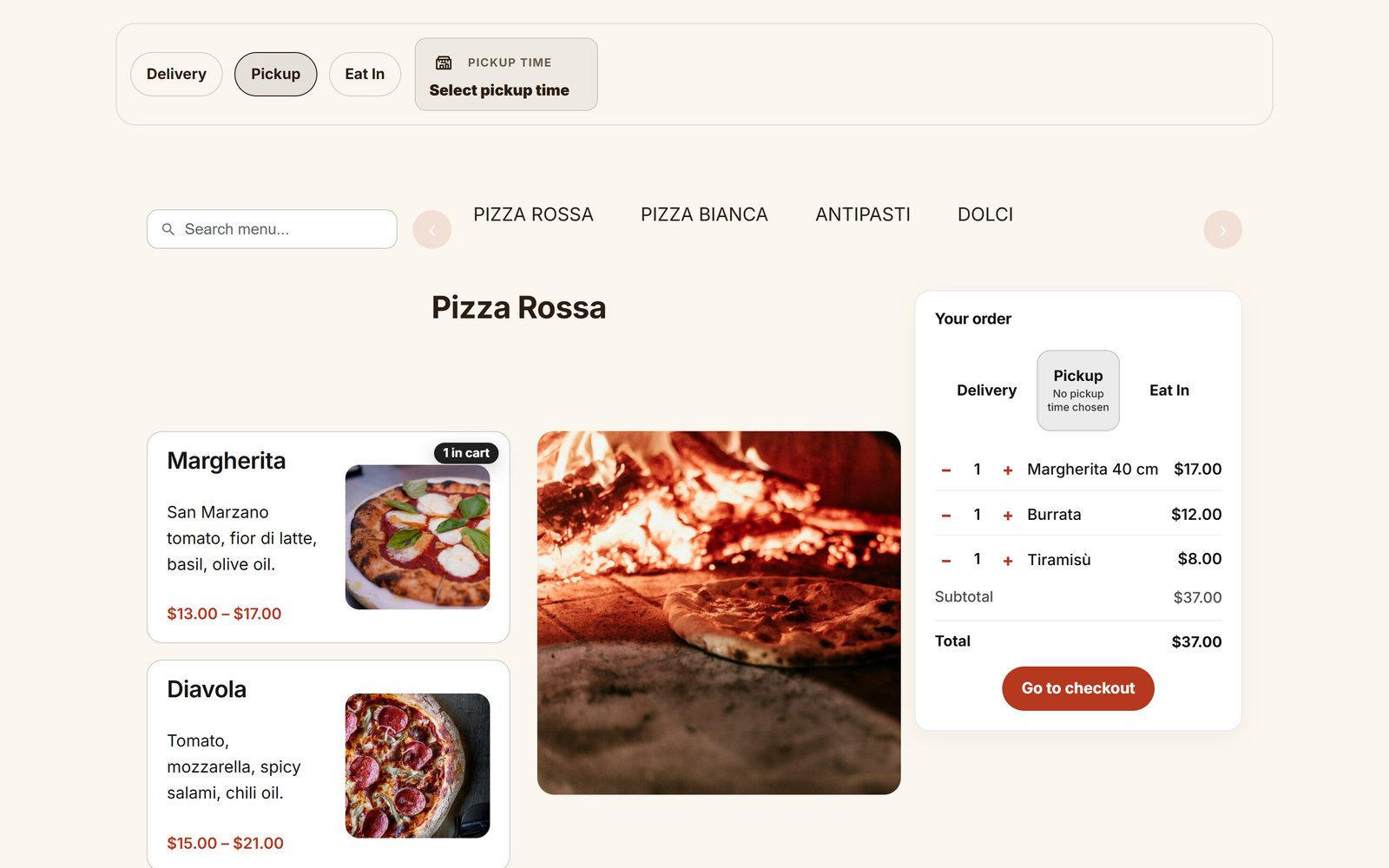
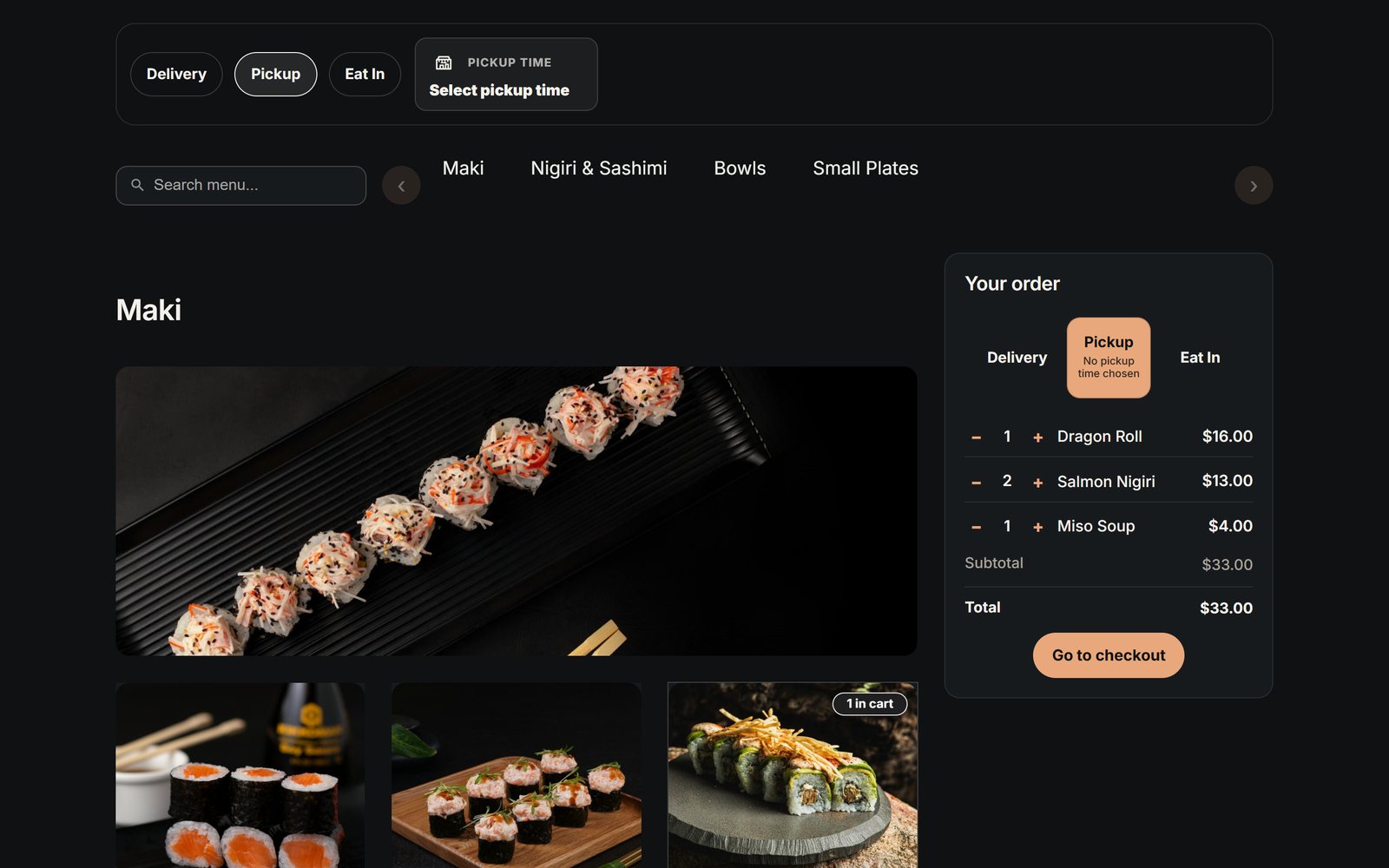
- Valdemar Dark, Ellen Noble, Einar’s Fusion, Arcade and Street – complete designs with their own colors, fonts and card style.
- Custom – full control over layout, colors, buttons, category images and fonts.
Choosing a design fills in the style settings. You can then change any of them in the block’s panels. See the Blocks reference.
2026 Template
Valdemar Dark
Ellen Noble
Einar’s Fusion
Arcade
Street
Which products are shown
Section titled “Which products are shown”Under Product Selection → Source, choose Filter by category (pick the categories and their order) or Pick specific products. To show different products per mode or time of day, see A menu per mode or time of day.
Mobile
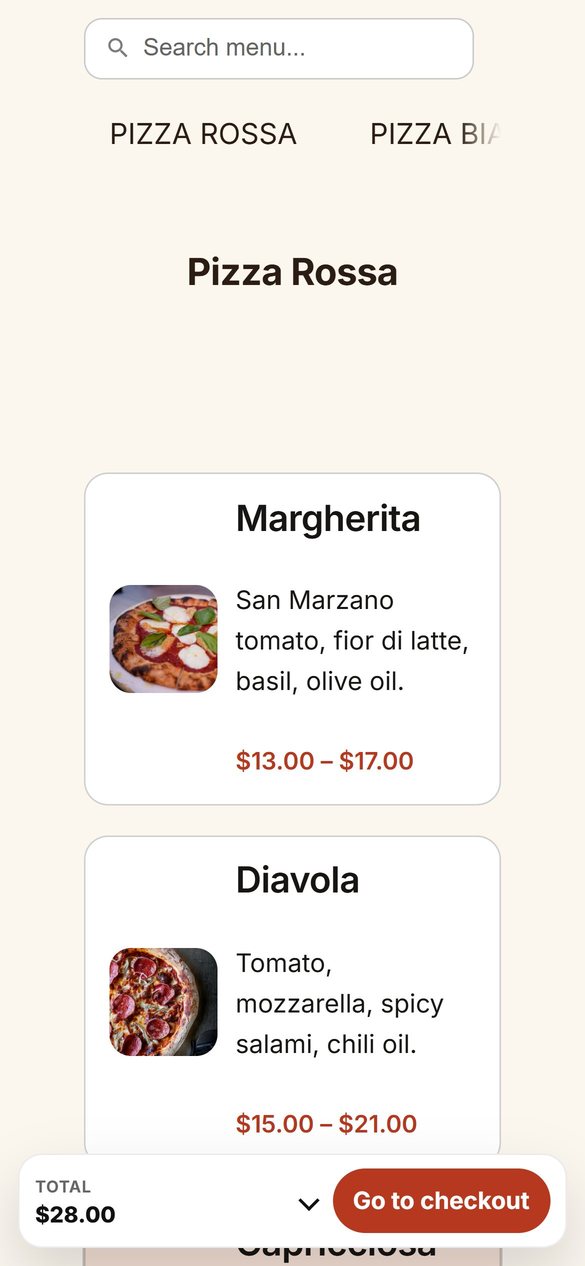
Section titled “Mobile”The menu adapts to small screens. Under Mini cart → Mobile cart layout, choose how the cart is shown on phones: expanded, hidden, or a summary bar at the bottom of the screen.
The shop page
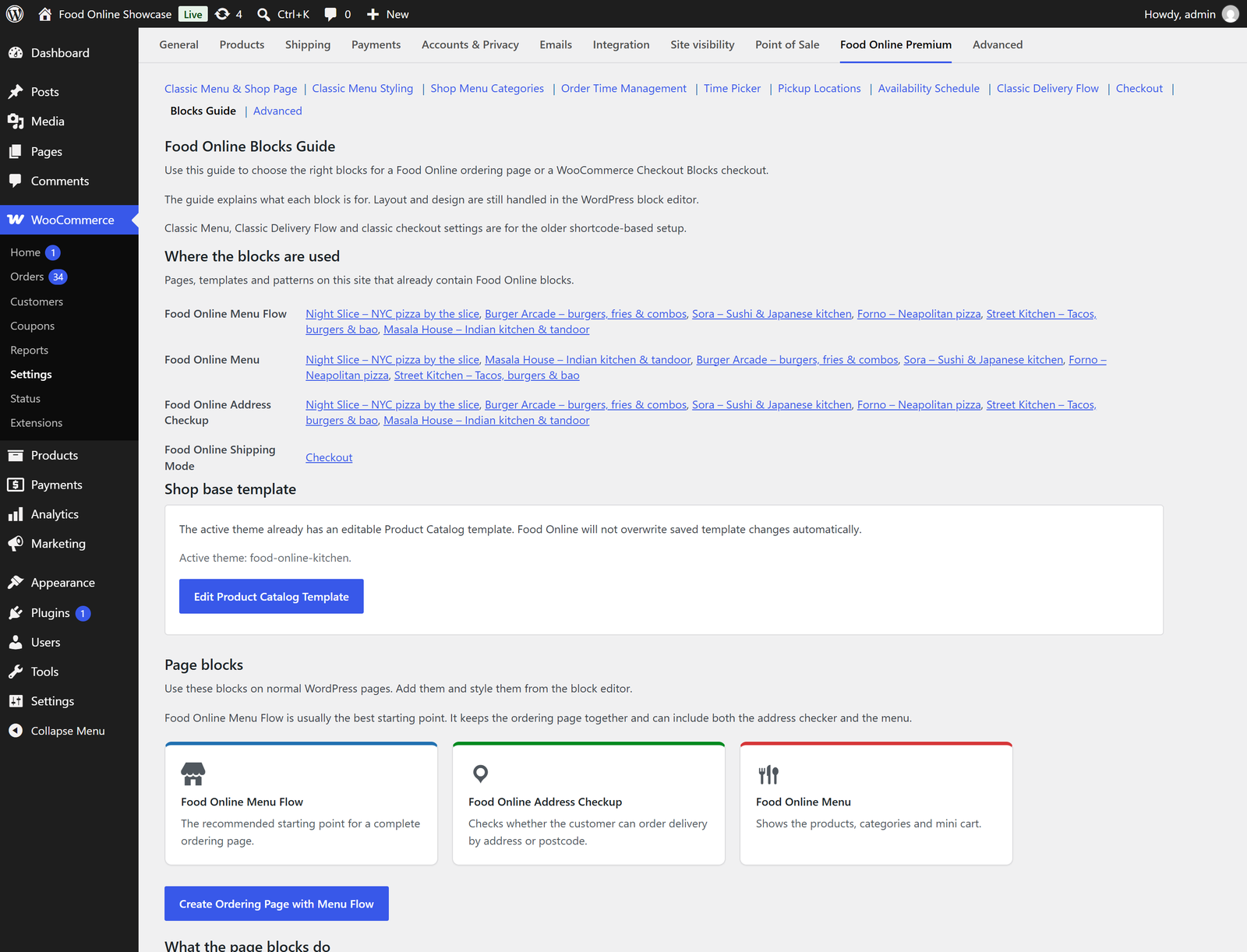
Section titled “The shop page”With a block theme, the WooCommerce shop page uses the theme’s Product Catalog template. Under Food Online Premium → Blocks Guide → Shop base template, click Create Product Catalog Template to make the shop page show Food Online Menu Flow. Food Online does not overwrite a Product Catalog template that is already saved; use Edit Product Catalog Template to change it.
With a classic theme, use the classic shop-page setting, see Classic menu and checkout.
Blocks Guide
Section titled “Blocks Guide”Food Online Premium → Blocks Guide lists the pages, templates and patterns that use Food Online blocks, and has buttons to create an ordering page and a shop template.