Address check and Google APIs
Before a delivery order, the guest can enter an address or a postcode. Food Online checks it against your WooCommerce shipping zones and shows whether you deliver there, and optionally the price.
The check is the Food Online Address Checkup block. It is included in Menu Flow, and can also be placed on its own, for example on a landing page.

Address or postcode
Section titled “Address or postcode”Choose under Checkup Mode → Validation method in the block:
- Postcode – the guest enters a postcode. No Google key is needed. Works well when your zones are defined by postcodes.
- Address – the guest types an address and gets suggestions from Google. Needed for drawn zones, radius and driving distance in Shipping Zones by Drawing.
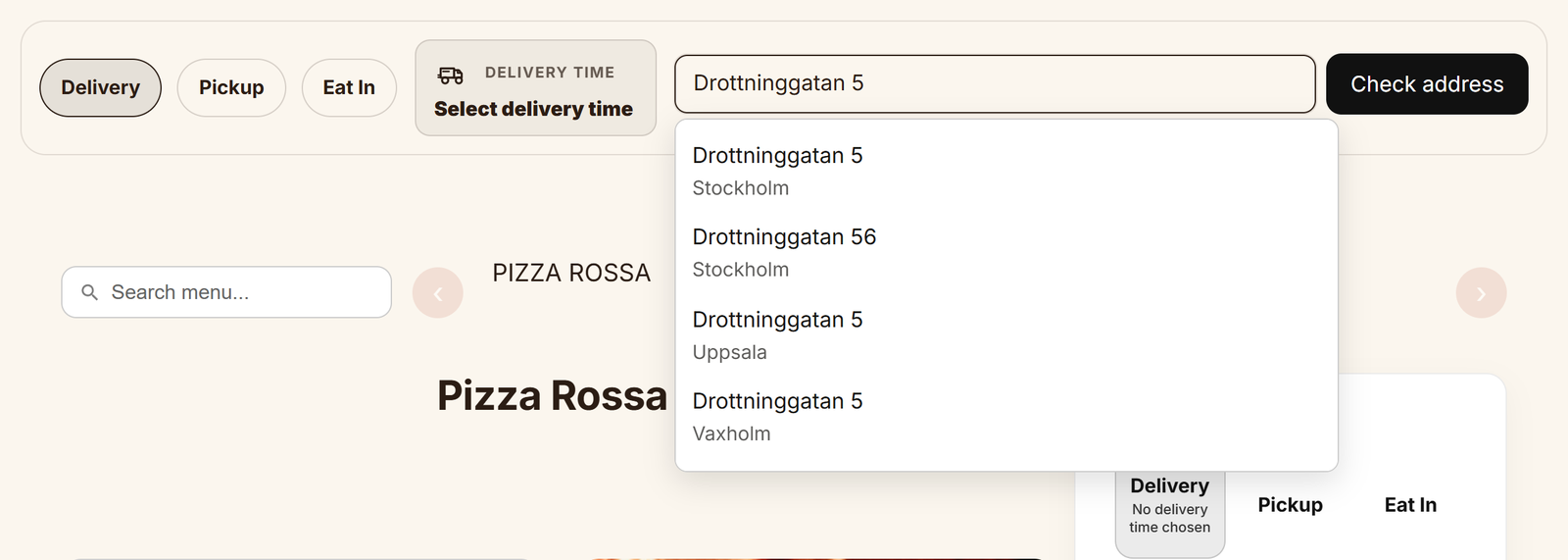
Useful options
Section titled “Useful options”- Include price information – shows the delivery price with the result.
- Enable geolocation – a crosshair icon finds the guest’s position.
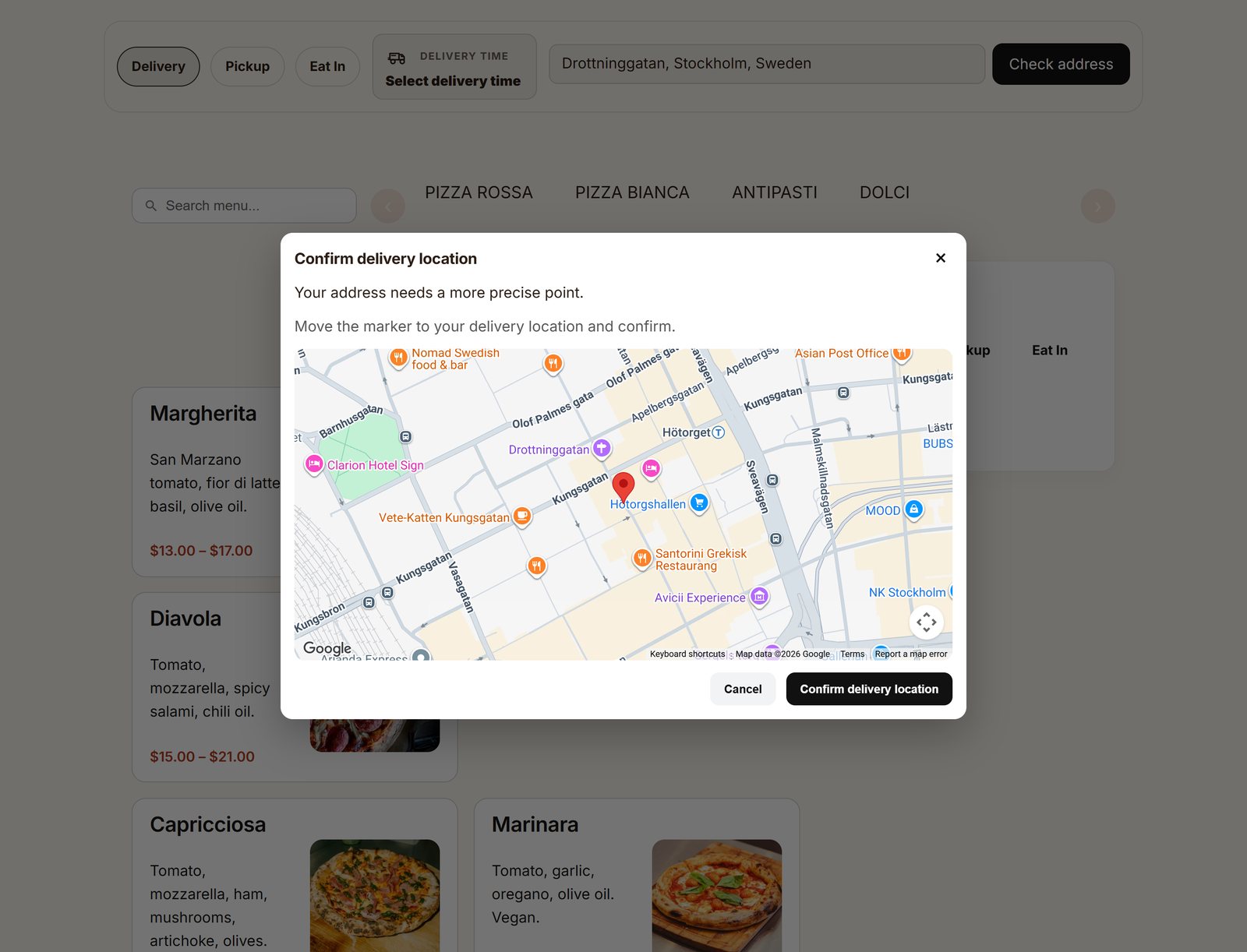
- Map fallback on precision failure – if Google cannot find an exact address, the guest marks the spot on a map. A map link is added to the order.
- Region/country code bias – suggestions from your country first.

All block options are listed in the Blocks reference.
Google APIs
Section titled “Google APIs”The address check and calculated delivery times use Google Maps Platform. You need a Google Cloud project with billing; see Google’s Get started guide.
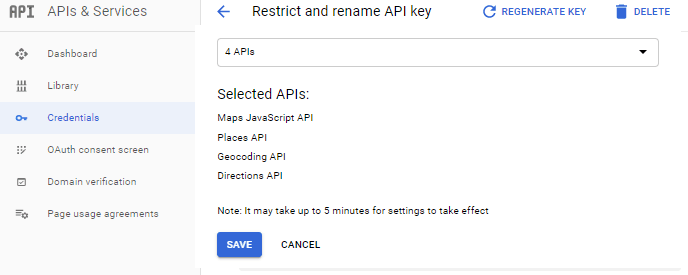
- Create an API key and enable Maps JavaScript API, Places API (New), Geocoding API and Routes API (Routes is for calculated delivery times).
- Restrict the key, see below.
- Enter the key:
- in the Food Online Address Checkup block, panel Address checkup → Google Maps API key
- and under Food Online Premium → Classic Delivery Flow → Google Maps API Key, which is used for calculated delivery times
Restrict the key
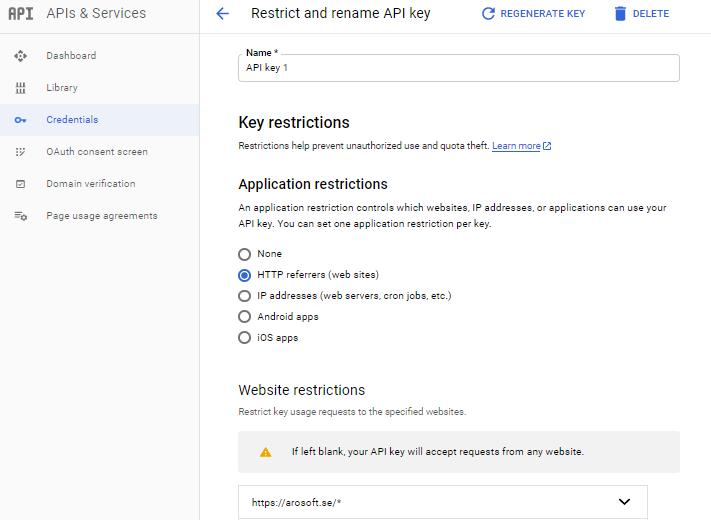
Section titled “Restrict the key”The key is used in the guest’s browser, so anyone can see it in the page source. Without restrictions, others can use your key and you pay for their requests. Always restrict it in the Google Cloud Console, under APIs & Services → Credentials → your key:
- Application restrictions: choose Websites (HTTP referrers) and add your site with an asterisk at the end, for example
https://example.com/*. Without the asterisk, only the exact address works. Add every domain you use, such as with and withoutwww, and your staging site. - API restrictions: choose Restrict key and select only the APIs listed above.
Food Online calls Google from the browser only, so a website restriction is all the key needs. Do not use an IP address restriction.
Current or legacy APIs
Section titled “Current or legacy APIs”The setting Classic Delivery Flow → Google APIs chooses the APIs for calculated delivery times and the classic address search:
- Current APIs – Places API (New) and Routes API. Default for new sites.
- Legacy APIs – Places API and Directions API. Sites that had a key before 6.0 keep this after updating.
Google projects created after March 2025 cannot enable the legacy APIs. Enable the current APIs for your key, then switch the setting.
Not working?
Section titled “Not working?”Open the browser console (right-click → Inspect → Console) on the menu page. Google reports missing APIs and key restrictions there.