Confirming and rejecting orders
How it works
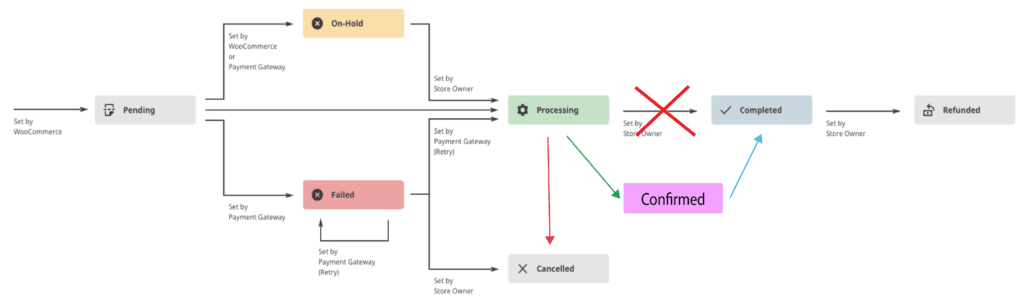
Section titled “How it works”- A customer places an order. When the order reaches the WooCommerce status Processing, it waits for your answer.
- The customer sees a waiting message on the order received page.
- You confirm the order, optionally with a fulfillment time and a comment, or you reject it.
- The customer’s page updates by itself, and the customer gets an email.
- When the order is done, you mark it Completed as usual.
Order statuses
Section titled “Order statuses”| Status | Meaning |
|---|---|
| Processing | WooCommerce status for a paid order (or a cash on delivery order). The order waits for your answer. |
| Order confirmed | Added by the plugin, shown right after Processing in the status list. You have confirmed the order. |
| Cancelled | The order was rejected. WooCommerce restores the stock as for any cancelled order. |
| Completed | You have fulfilled the order. Confirmed orders show a Complete button in the order list. |
Which orders can be confirmed
Section titled “Which orders can be confirmed”- Orders with the status Processing can always be confirmed.
- Orders with the status On hold can be confirmed only if they are paid with a manual payment method that you have selected under Advanced → Allow on-hold manual payment methods (Direct bank transfer or Check payments). Other on-hold orders are left alone, because On hold can also mean that an online payment is waiting for capture, a fraud check or a dispute.
- Orders that contain only products that are both virtual and downloadable go straight to Completed in WooCommerce and are not part of the confirmation flow.
- Orders that are Pending payment (not yet paid online) wait until the payment is complete.
| Payment method | Typical status after checkout | Can be confirmed |
|---|---|---|
| Cash on delivery | Processing | Yes |
| Card, Stripe, WooPayments, PayPal (paid) | Processing | Yes |
| Online payment held for capture, review or dispute | On hold | No |
| Direct bank transfer, Check payments | On hold | Only if selected in Advanced |
With or without a fulfillment time
Section titled “With or without a fulfillment time”The setting Order Fulfillment Time decides what you answer:
| Fulfillment time off | Fulfillment time on | |
|---|---|---|
| You answer with | Confirm or reject | A date and time, then confirm, or reject |
| Order preview | Confirm / Reject and a comment | A date-and-time field, Confirm / Reject and a comment |
| Customer while waiting | “Order status” with a waiting animation | “Fulfillment Time” with a waiting animation |
| Customer after confirmation | “Order confirmed” and your comment | “Order confirmed”, the time and your comment |
| Confirmation email | Your comment | “When will the order be ready?” with the time, and your comment |
| Edit order screen | – | A Fulfillment Time field |
| Order action | Confirm order | Confirm fulfillment time |
The time must be in the future. It is shown in the date and time format of your site (Settings → General).
Where you confirm
Section titled “Where you confirm”Order preview (recommended)
Section titled “Order preview (recommended)”On WooCommerce → Orders (or the Live Order Page), click the eye icon on an order to open the preview.
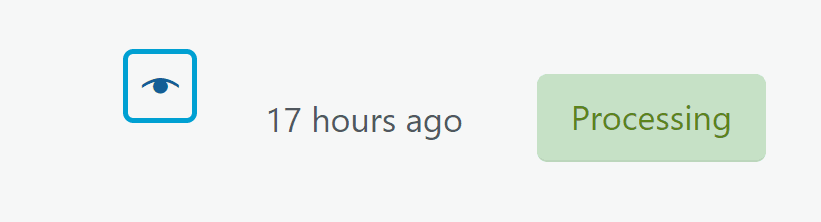
The preview shows the confirmation form:
- Order Fulfillment Time (when the fulfillment time is on). With Food Online, the time the customer picked is filled in.
- Comment: optional. The customer sees it on the order received page, under My Account and in the email. It is also saved as an order note.
- Confirm and, with Ability to deny order? on, Reject.
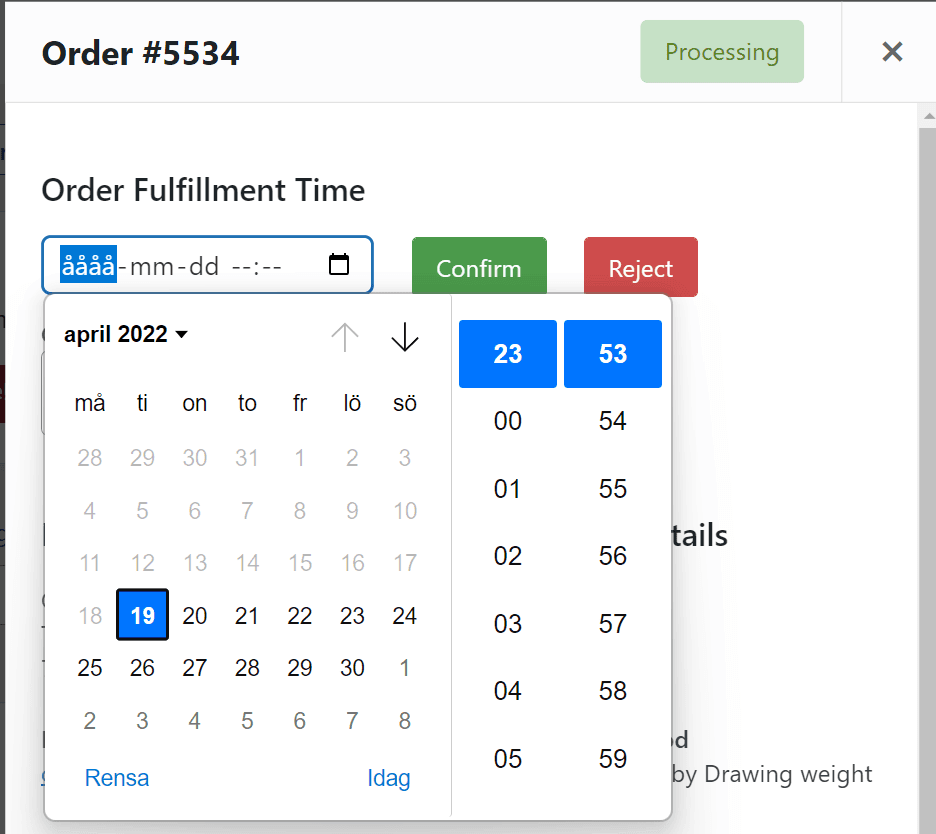
The page reloads when the order is saved. For orders that cannot be confirmed (for example already confirmed), the form is read-only.
Order list buttons
Section titled “Order list buttons”In the order list, orders that can be confirmed have a Confirm button and, with rejection on, a Reject button. Confirmed orders have a Complete button.
- With Order Fulfillment Time on, Confirm opens the order preview, so that you give a time.
- Without a fulfillment time, Confirm confirms the order directly, without a comment.
- Reject rejects the order directly, without a comment. Use the preview if the customer should get a comment.
Edit order screen
Section titled “Edit order screen”On the edit order screen:
- the Fulfillment Time field (with the fulfillment time on) sets or changes the time, and
- the Order actions box has Confirm order or Confirm fulfillment time.
Set the time, choose the action and click Update. You can also change the time of an order that is already confirmed; the customer is not emailed again. With Food Online, the Food Online time is updated too.
Rejecting an order
Section titled “Rejecting an order”Turn on Ability to deny order? in the settings to get the Reject buttons.

When you reject an order with Reject in the order preview or the order list:
- the order gets the status Cancelled, and WooCommerce restores the stock,
- the customer sees “Order rejected” with your comment on the order received page,
- the email Cancelled Order to Customer is sent with your comment.