Live Order Page
The Live Order Page is an order list for the kitchen or the counter: it refreshes by itself and rings when a new order arrives.
Turn it on
Section titled “Turn it on”- Turn on Live Admin Order Page under WooCommerce → Settings → Live Order Confirmation.
- Open WooCommerce → Live Order Page. The menu item is visible to users who can manage orders (shop managers and administrators).
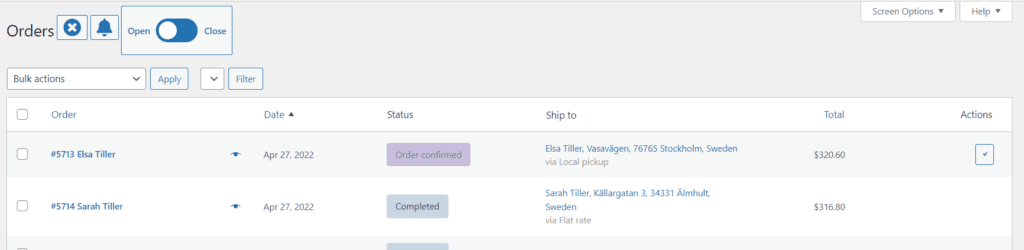
The page is the normal WooCommerce order list, with these additions:
| Part | What it does |
|---|---|
| Automatic refresh | The list reloads every 15 seconds. |
| New order alert | A sound, a short highlight of the new row, and the browser tab title blinking “New Order” until someone moves the mouse, touches the screen or presses a key. |
| Bell button | Turns the sound on or off. |
| Open / Close switch | Closes or opens the store for new orders. Shown when Ability to close the store is on. |
| Status filter | A drop-down to show only orders with one status, for example Processing. |
| Exit button | Leaves the Live Order Page. |
Confirm and reject orders from the page with the eye icon (order preview) or the order buttons, see Confirming and rejecting orders.
- The sound is off when the page opens. Click the bell to turn it on.
- Browsers block sound until you have clicked on the page. If the page remembers that the sound was on, it shows Order bell is activated with a Continue button; click it to allow the sound.
- With Keep Order Alert? on, the sound repeats until someone moves the mouse, touches the screen or presses a key on the page. Otherwise it plays once.
- With Alert only processing orders? (Advanced settings) on, the page rings only for new orders with the status Processing. Unpaid online orders that are still Pending payment do not ring. This needs WooCommerce High-Performance Order Storage.
Close the store
Section titled “Close the store”With Ability to close the store on, the Live Order Page has an Open / Close switch.
When the store is closed:
- shop pages show the notice “Online ordering is closed and we are not able to receive any orders at the moment.”,
- checkout is blocked with “We are not able to receive any orders at this moment.” (both the Checkout block and the classic checkout),
- with Food Online, the menu shows no products.
The store stays closed until you open it again with the same switch, also if you close the browser. Open the store with the switch before you turn off Ability to close the store; otherwise a Food Online menu can stay empty.