Food Online Premium
Read this when updating to Food Online 5
This documentation is describing the latest release of the Food Online Premium version. The free version can be downloaded from WordPress.org.
Installation
Section titled “Installation”- Download the extension from your Arosoft Dashboard
- Navigate to Plugins -> Add New
- Then click Upload Plugin
- Now click Choose File and select the .zip
- Click Install Now
- Deactivate the free version of Food Online (if activated)
- Click Activate Plugin
Adjust translations or translate to a new language with Loco Translate
Update of new version
Section titled “Update of new version”- Download the new version from your Arosoft Dashboard
- Make sure that the option Delete Settings? is unchecked so that your settings are preserved.
- If you are upgrading from the free version of Food Online you have to deactivate the free version.
- Install the new version as above.
Changelog
Section titled “Changelog”Get information on the latest and previous releases from the changelog.
Tutorials
Section titled “Tutorials”Quickly learn more through hands-on step-by-step guides.
More will come!
Getting Started
Section titled “Getting Started”The settings page can be found as a tab in the WooCommerce Settings.

Insert the Food Online Menu at the WooCommerce shop page by selecting the “Show menu” option in the main settings tab. If you like to use the standard WooCommerce page template and only use the delivery features, select the option “Show only delivery feature”. When using this mode it might be good to disable the delivery address/postcode validation requirement. This can be done at the “Advanced” settings tab.
It is also possible to insert the Menu on another page using the shortcode [foodonline]. Choose sorting, categories, and products with shortcode arguments, see the shortcode section below for further instructions. To only insert the delivery feature on another page, use the shortcode [foodonline_delivery].
If you are using a Theme or other plugin that intervenes with the WooCommerce product loop it is possible to use the shortcode [foodonline2] as an alternative.
You are now ready to show the Menu with the plugin’s default settings. Add products in WooCommerce to start filling your Menu.
Delivery Features
Section titled “Delivery Features”To activate and set up the delivery features, go to the settings tab “Delivery Features” in the Food Online Premium settings section. Choose Address Validation to validate the user delivery addresses. If you choose Post Code Validation, the Google Maps API will not be needed.
Get Started with Delivery Address Validation
Section titled “Get Started with Delivery Address Validation”Before it is possible to start validating delivery addresses at the Menu, you have to get your Google Maps API Key.
To get started with the Google Maps Platform you will need a google billing account. Read this Get Started guide.
Be sure to include Maps JavaScript API, Places API, Geocoding API, and Directions API as shown in the figure below.
Selection of APIs 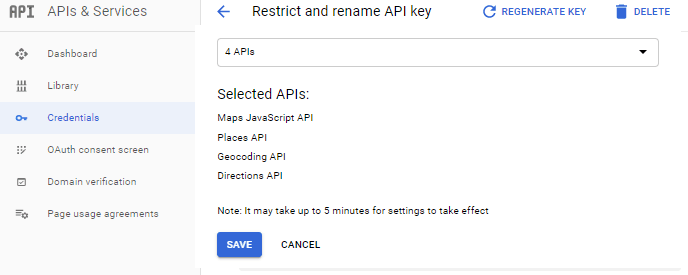
It is recommended to restrict access to the key by IP number or HTTP-address. Remember to add an asterisk (*) if you don´t add the exact path. For example https://example.com/\*
Restriction of API Key 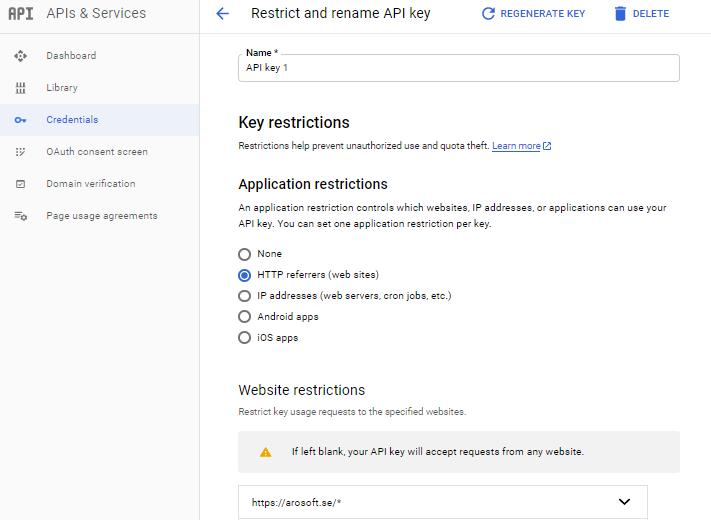
Insert the API Key at the “Delivery Features” settings section.
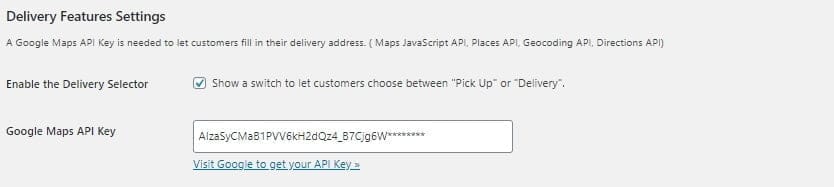 Not Working? Right-click your e.g. Chrome window and choose Inspect. Here you can find error information related to your Google Maps API.
Setup of WooCommerce Shipping Zones & Methods
Section titled “Setup of WooCommerce Shipping Zones & Methods”If you are a beginner working with WooCommerce Shipping Zones, it is recommended to first read through the documentation.
Be sure that you are aware of how the shipping zones work, and especially that only shipping methods from the first matched zone are included at checkout.
Shipping zones match customer address from top to bottom — the first to match the customer address is always used. If no custom zones match, then Locations not covered by your other zones is used.
WooCommerce Shipping Zones Documentation
The “Pick Up” mode of the delivery selector will use the WooCommerce shipping method “local pickup” and the “Delivery” mode will use “flat rate”, “free shipping” or other methods like “shipping zones by drawing”.
To be sure that the delivery selectors’ mode “Pick Up” will work, make sure to add the shipping method “local pickup” to all of your WooCommerce shipping zones. Do not forget to also add it to the zone “Locations not covered by your other zones”.
Delivery Mode
Section titled “Delivery Mode”The delivery mode is the primary setting when setting up the delivery feature. Four available options differ in both display and functionality.
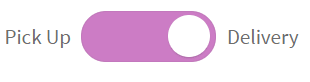
Delivery Switch always with the choices Pick Up and Delivery
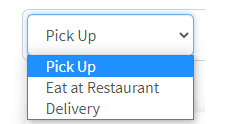
Dropdown Selector with the choices Pick Up, Delivery & Eat at Restaurant. Choose if to include one, two, or all three of them in the selector.
Only Delivery mode doesn´t show any switch or selector but the address- or postcode validation form is shown and all other implications of a delivery order ( such as checkout set up, time picker, order times, minimum order value, etc.) will be applied.
Only Pick Up mode enables all implications of a Pick-Up order such as checkout set up, time picker, and order times.
Display Menu by Delivery Mode
Section titled “Display Menu by Delivery Mode”It is possible to schedule when to show specific menus for the different delivery modes by using Availability schedules.
This can be useful if you have different menus for delivery, pickup, and eat-in.
Default Mode of Delivery Selector
Section titled “Default Mode of Delivery Selector”Choose if the initial state of the delivery selector should be “Pick Up” or “Delivery”.
If the delivery mode is “Dropdown Selector”, it is also possible to choose “Eat at Restaurant” as default.
If a customer session is already active, the latest choice will be shown when a customer returns to the menu page.


Make Selection Mandatory
Section titled “Make Selection Mandatory”It is possible to set the initial position of the delivery selector as neutral and thereby force the user to make a choice. It won´t be possible to checkout without a selection made.


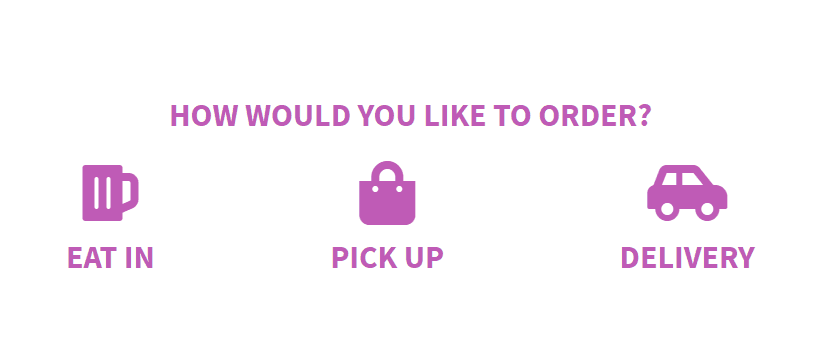
It is also possible to use a start page that lets users choose among the available delivery choices. When the user clicks on an icon the menu is loaded.
Pickup Location as selection
Section titled “Pickup Location as selection”If you have more than one restaurant, it is possible to add several pickup locations and then insert a selection form onto the checkout page. The form will only be visible for pickup orders.
If you are using the time picker on checkout, you will also have to schedule (Availability schedule tab) when the different pickup locations are available.

Delivery Address & Post Code Validation
Section titled “Delivery Address & Post Code Validation”On the Menu page, it is possible to let the users insert their delivery addresses or postcodes to get them validated regarding if delivery is possible and to get information about fees.
If you select not to validate, the delivery options will be shown at checkout as a standard WooCommerce setup.

Geolocate user address
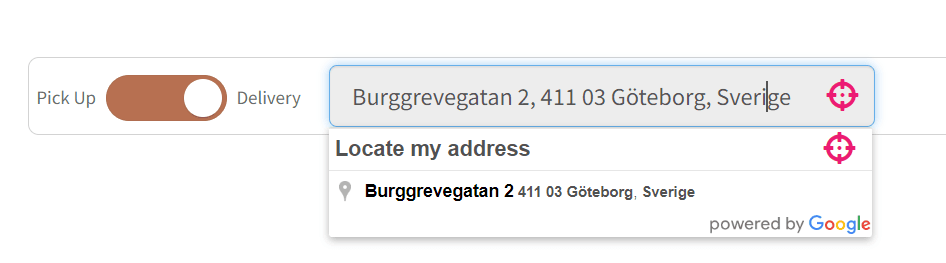
Section titled “Geolocate user address”There is an ability to let users geolocation their current position and interpret it to a street address.

By clicking the crosshair sign, the user agent position will be geolocated.
Pick Delivery Location from Map
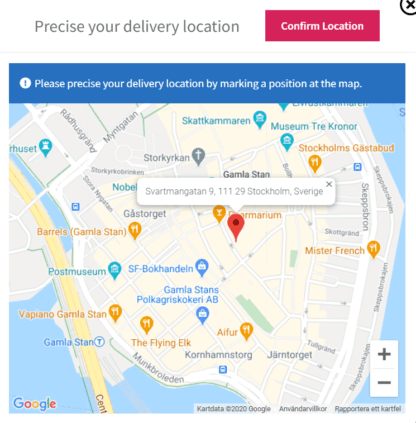
Section titled “Pick Delivery Location from Map”If the user enters an address that can´t be geolocated as an exact delivery address, a map will be shown to let the user pick the exact delivery location.
A map link to the picked delivery location will be attached to the admin and customer e-mails.
This feature can be necessary if you are in a country or area where google has poor address coverage.

Allow user to bypass address validation
Section titled “Allow user to bypass address validation”Choose this option to show a checkbox beneath the address validation form that lets the user skip the address validation and continue to checkout. The delivery options available will be shown at checkout as at a standard WooCommerce checkout page.

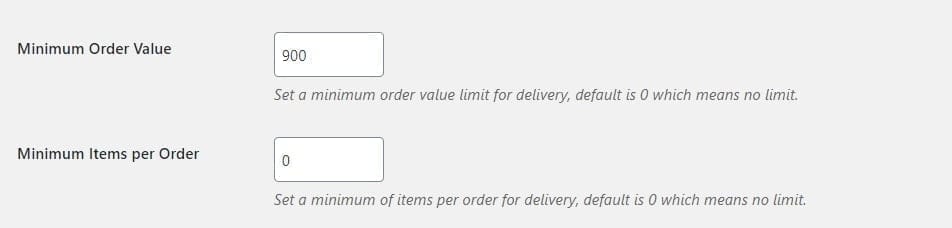
Minimum Order Value / Items per Order
Section titled “Minimum Order Value / Items per Order”You can set a minimum order value limit for delivery, default is 0 which means no limit. It is also possible to set a minimum quantity of items per order for delivery.
These limits will be controlled when a customer press the checkout button and the user will be informed if the conditions are not fulfilled.
Delivery location validation feedback
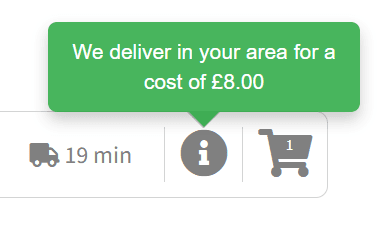
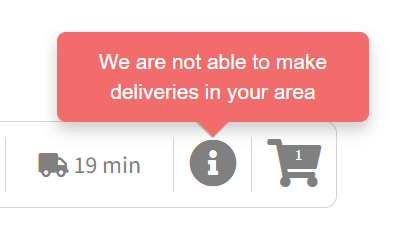
Section titled “Delivery location validation feedback”You can use colors ( green for positive & red for negative ) as part of the delivery location feedback.
It is also possible to choose how the messages appear on the screen. Either by a pop-up or by printing onto the screen.



Add Shipping Cost Suffix
Section titled “Add Shipping Cost Suffix”When a user selects a delivery address from the address form, it will be validated and the user will get receive a notice if delivery is possible or not.
If using this option, the notice will also contain the shipping cost.

Show Best Shipping Method
Section titled “Show Best Shipping Method”This option opens up to only show a single shipping method at checkout. The method with the lowest cost will be chosen. If there is more than one shipping method with equal cost, the top sorted shipping method will be chosen.
As an example, this could be necessary if several shipping methods are used with different levels of minimum order amount limits. It would then be good behavior if the unnecessary methods are hidden.

Delivery Integrations
Section titled “Delivery Integrations”Food Online orders can be transferred to Shipday with a selected delivery time and a calculated driver pick-up time. You will have to download and install the integration plugin found in the “Food Online Premium Archive” zip file.

Add Delivery Mode Column in Orders Table
Section titled “Add Delivery Mode Column in Orders Table”It is possible to add an extra column in the admin orders table to easily visualize the chosen mode of delivery.

Menu Layout and Styling
Section titled “Menu Layout and Styling”Menu Layout Settings
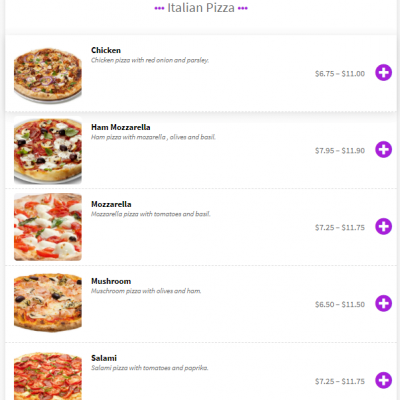
Section titled “Menu Layout Settings”There are three layouts to choose from. One Column, Two Columns, and 2020 Template
 One Column Layout
  Two Column Layout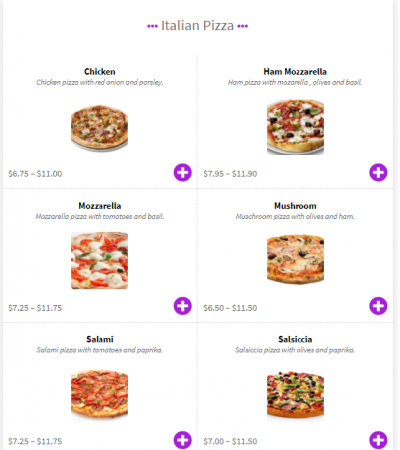
2020 Template Layout
Section titled “2020 Template Layout”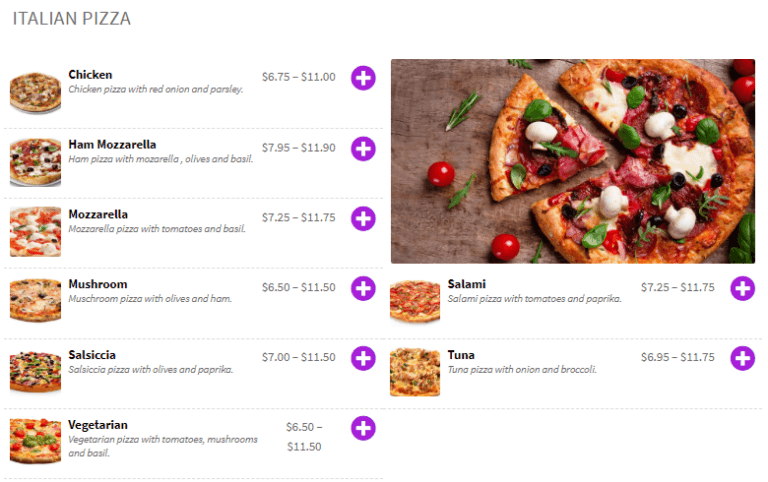
Accordion Menu
Section titled “Accordion Menu”To only display one category at a time at the Menu, choose to display it with an accordion behavior.
 Accordion Menu Behaviour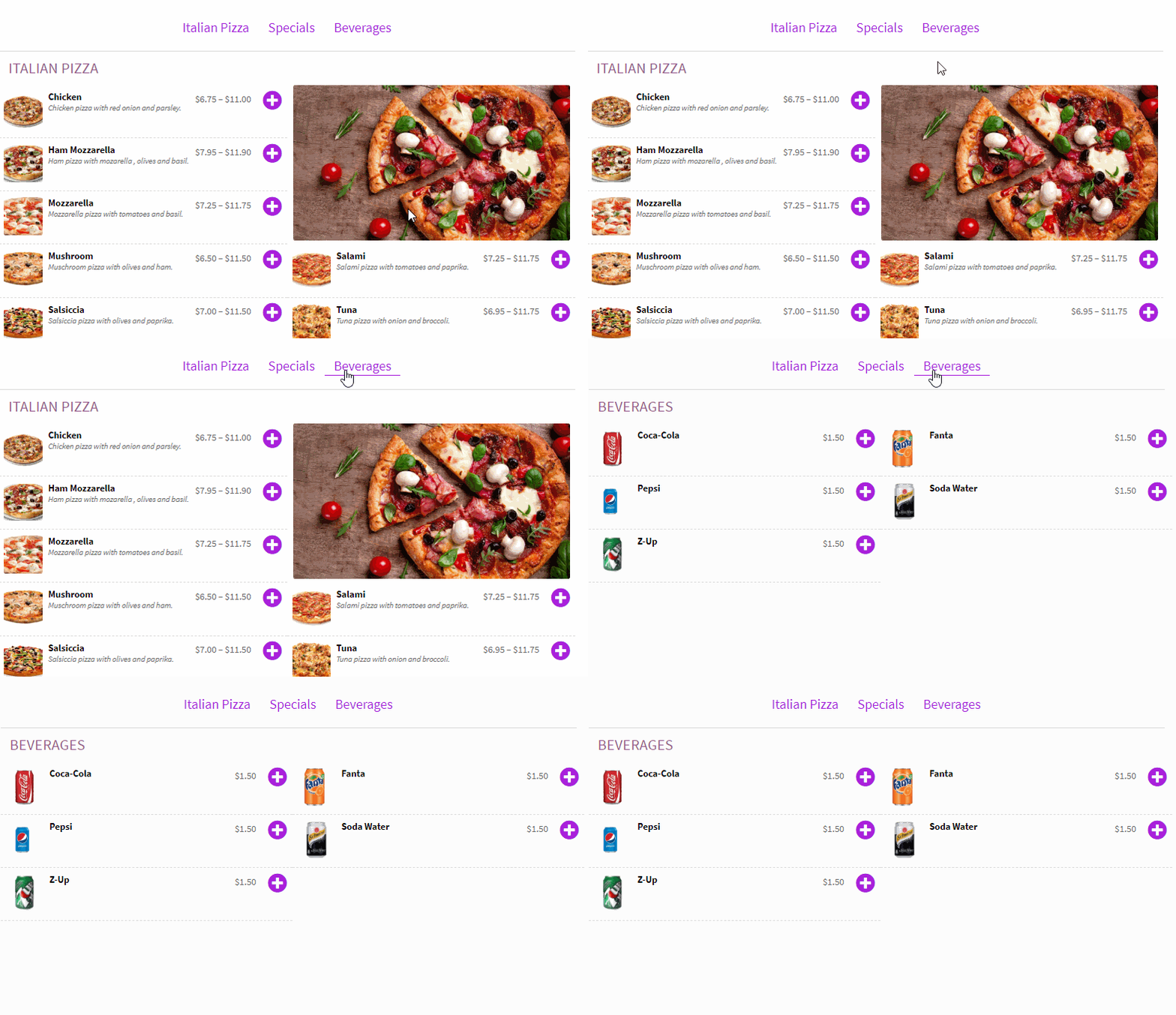
Top Bar
Section titled “Top Bar”The top bar appears above the Menu and contains the delivery selector, delivery address form, order time notice, a link to the cart, and an info icon that shows relevant information when the user interacts with the Menu.
If the top bar is not chosen the content of it will be placed in the right sidebar.
 Top Bar above the Menu
Categories Menu Position
Section titled “Categories Menu Position”A menu with product categories can be displayed above or to the left of the food Menu. If the option “Show Sub Categories along with Parent Category” is chosen, the subcategory will not show up in the category menu.
 Left and Top position of Category Menu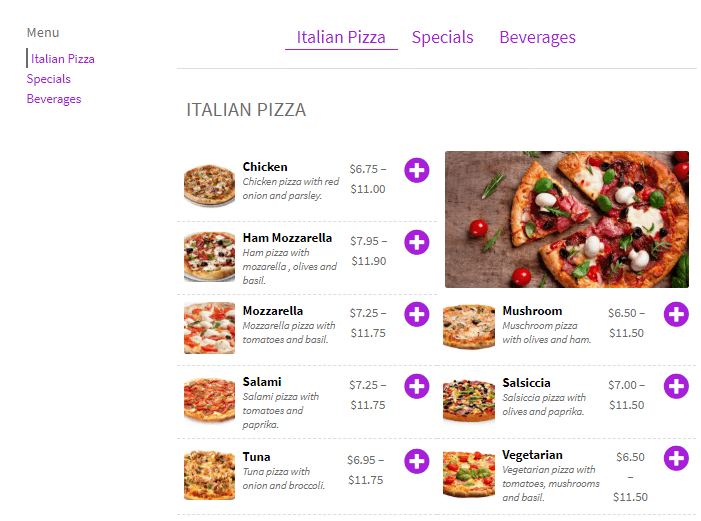
Layout at Mobile Devices
Section titled “Layout at Mobile Devices”The Menu will be adjusted to the current device width and there is an option to show a category menu at the top. It is also possible to show the categories with a dropdown.
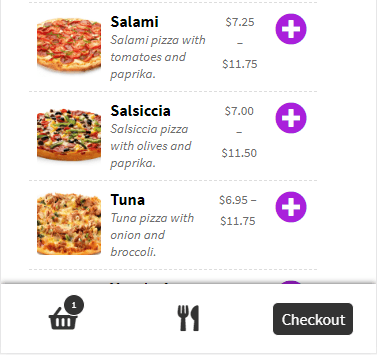
A bottom bar with links to the cart, checkout, and back to the Main Menu can also be shown on the pages you choose.

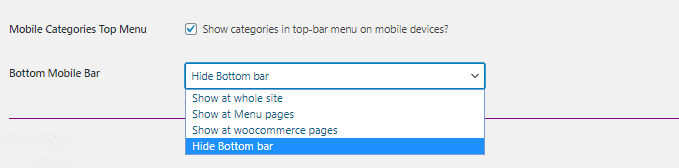 Mobile Bottom Bar
  Mobile Category Menu as Dropdown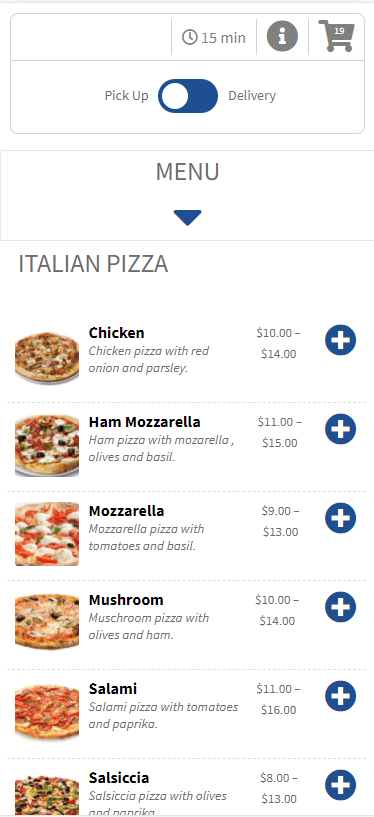
Customizing Bottom Bar Icons
Section titled “Customizing Bottom Bar Icons”The icons in the mobile bottom bar use Fontawesome icons and it is possible to change the icon with some additional CSS.
Find the icon you like to use and insert the Unicode into the additional CSS as shown below.
/* Cart Link */
.fdoe-handheld-footer-bar ul li.shop>a::before {
content: “f57b”;
}
/* Menu Link */
.fdoe-handheld-footer-bar ul li.minicart>a::before {
content: “f07a”;
}
/* Checkout Link */
.fdoe-handheld-footer-bar ul li.fdoe_checkout_2>a::before {
content: “f061”;
}
.fdoe-handheld-footer-bar ul li.fdoe_checkout_2 .fdoe_checkout_22 {
display:none;
}
Subcategories Settings
Section titled “Subcategories Settings”By default, product subcategories are treated as ordinary categories and are displayed as other categories in the Menu.
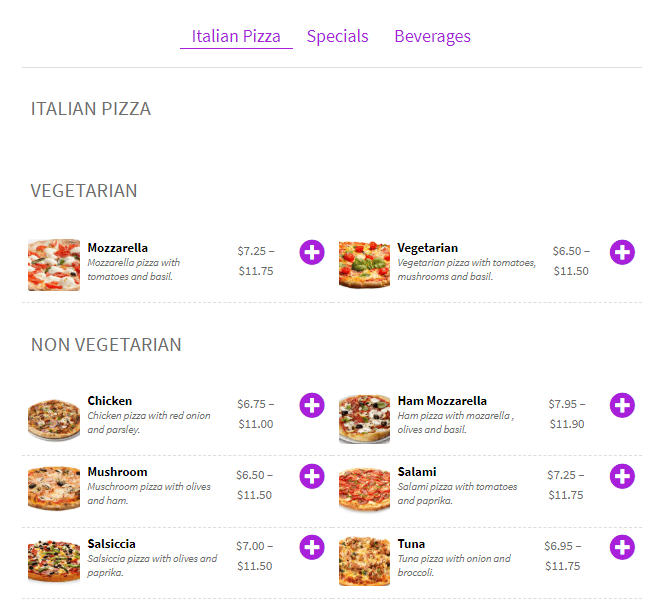
If you wish to present the Menu in a hierarchical manner and place subcategories beneath the parent category it is possible with the option shown below.

In the example below, it is shown how the subcategories Vegetarian and Non-Vegetarian are sorted under their parent category Italian Pizza. Remark that the subcategories are not shown on the category menu.
Menu Style Settings
Section titled “Menu Style Settings”Below follows a concise list of the different Menu style options.
Menu Color
The Menu color will affect icons and Menu headings.
Menu Background Color
Choose a Menu background color. Leave blank to make it transparent.
Menu Items Separator Style & Color
Choose the style and color of the border between Menu items.
- Dashed
- Solid
- Dotted
- None
Menu Titles Icon
Choose the icon to display along with Menu titles like shown below.
The Menu titles in the Menu Layout 2020 will not have any icons displayed.

Star
Dots
Lines
Leef
Ring
Chile Pepper
Pizza
Hamburger
Apple
Item Icon
Choose the item “Add” icon in the Menu as shown in the example below.
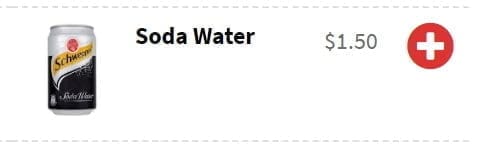
Standard
Plus
Square Shape Plus
Leef
Knife & Fork
Shopping Basket
Shopping Cart
Shopping Cart with Plus
Product Images
Choose the size of product images or not show them at all.
Product Image Type
Select if to use our default uncropped and light product image type or to use WooCommerce Thumbnail type.
“WooCommerce Thumbnail defaults to 600px width, square cropped so the product grids look neat. The aspect ratio for cropping can be customized by the store owner.”
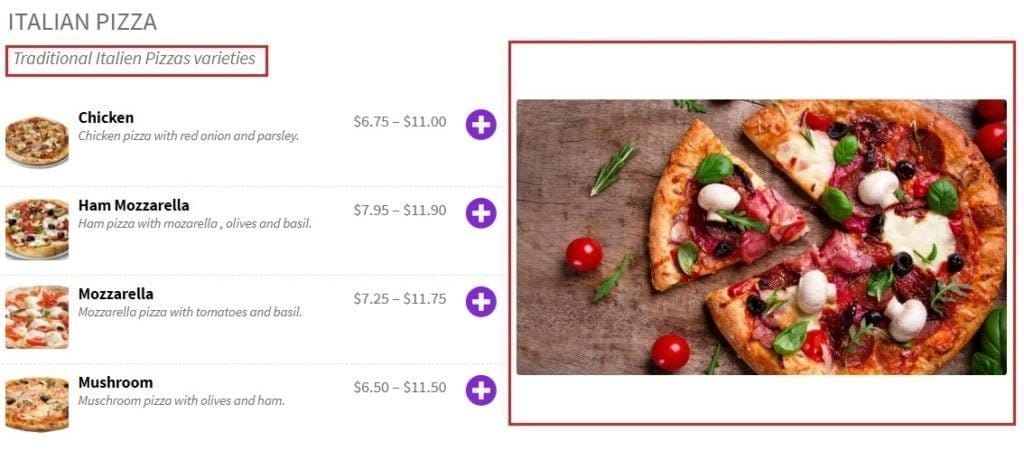
Category Images & Descriptions
Choose to show the image and description in the Menu.
The placement will vary depending on the Menu Layout chosen.
Main Settings Tab
Section titled “Main Settings Tab”Main Settings
Section titled “Main Settings”| Setting | Description |
|---|---|
| Sticky | Make the left menu bar and the right side cart sticky, so the sidebars are always visible on the screen. The stickiness can also be set separately for mobile devices. |
| Smooth Scrolling | Smooth (“soft”) scrolling when clicking on menu links. |
| Show confirmation when added to cart | A label with the text “Added to cart” tells the customer that the item was added. |
| Hide the Storefront Theme Headings | Hide the menu, search fields and cart in the page headings (only for the official WooCommerce Storefront theme). |
Product Pop Up Options
Section titled “Product Pop Up Options”| Setting | Description |
|---|---|
| Pop-up simple products? | Use a pop-up for simple products when adding to cart. If the pop-up is not shown, the item is added directly to the cart. |
| Pop-up variable products? | Use a pop-up for variable products when adding to cart, or add them directly to the cart. A variation cannot be added directly with a selection. It is also possible to redirect to the standard WooCommerce product page. |
| Product Pop-up Source | How the pop-up content is displayed: Theme Template (your theme decides the content), Food Online Original (the original Food Online template) or Food Online Style 1 (a new, clean product pop-up). |
| Product Pop-up Content | Content in the product pop-up: product image, product meta, product rating and product description. Not applicable when the theme template provides the content. |
Minicart Settings
Section titled “Minicart Settings”Hide the Minicart from the Menu page?
Hide the Cart from the Menu page at the right sidebar.
Minicart Style
Choose how to style the mini-cart
- Pop-up Style - remove button will show when hovering over a cart item
- Basic Style - remove button will always be visible
- Theme Default - use the active Theme mini-cart template
- +/- Buttons - increment buttons to change the quantity of the items
Minicart Order
Select where added products appear in the mini cart. At the bottom or top of the cart.
Checkout Settings
Section titled “Checkout Settings”Checkout Page
It is possible to change the fieldset of the checkout page and thereby remove some forms and lock some other forms.
The setup of the checkout page is depending on the choice of the delivery selector and are:
-
For “Pick Up” choice or when the delivery selector is turned off
- Phone OnlyPhone and E-mailPhone, E-mail and NameDefault Woocommerce Setup
-
For “Delivery” choice
- Limited fieldDefault Woocommerce Setup
-
For “Eat at Restaurant” choice
- Only Table NumberOnly NameDefault Woocommerce Setup
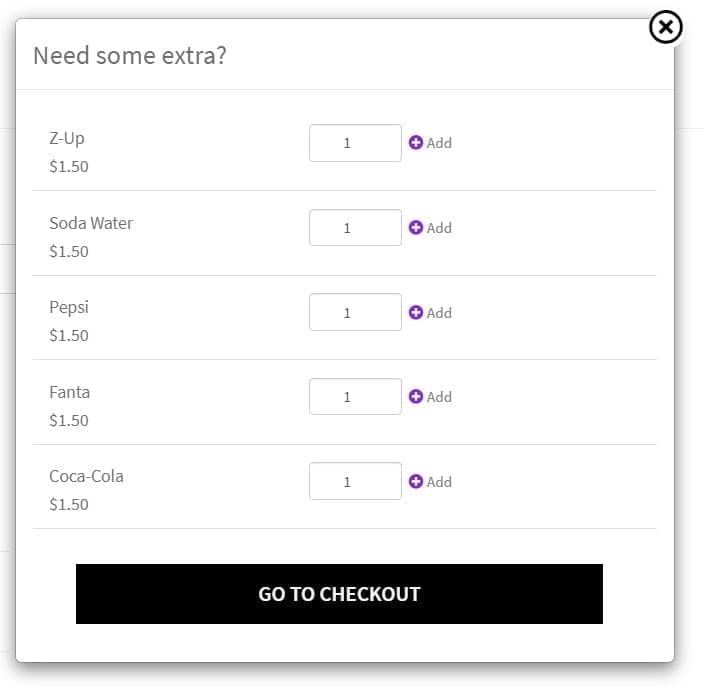
Extra? Popup
Show a popup when users proceed to checkout with featured products as supplementary.
A product can be marked as “Featured” in the WooCommerce products archive. Only “Simple” products can be added since no choice selection is possible in the popup.
Food Online Shortcodes
Section titled “Food Online Shortcodes”[foodonline] & [foodonline2]
Section titled “[foodonline] & [foodonline2]”Use the shortcode [foodonline] or [foodonline2] to insert the Menu on any page you like. You must NEVER use curly quotes.
Likewise use [foodonline categories="pizza,kebab,salad"] to only show certain categories in a certain order. Use the category “slug” name that you find in the category section of the admin panel.
And even [foodonline tags="food, drinks"] will work to only show certain tags.
To show only certain products use [foodonline ids="XX, YY"].
Decide the product order using [foodonline orderby="title"]. Use order attributes from below. If it does not work, read this topic.
_date_ – The date the product was published._id_ – The post ID of the product._menu_order_ – The Menu Order, if set (lower numbers display first). This is the default orderby mode._price_ – Price sorting. Change to high to low by adding order="desc"._popularity_ – The number of purchases._rand_ – Randomly order the products on page load (may not work with sites that use caching, as it could save a specific order)._rating_ – The average product rating._title_ – The product title.
It is possible to combine the shortcode attributes like [foodonline ids="id-2" categories="seafood"].
Make sure not to use a curly quote character (as above) in the shortcode. Be aware of this if you copy paste a shortcode from somewhere.
Block Shortcodes
Section titled “Block Shortcodes”It is possible to build your own menu page layout using shortcodes together with for example WordPress Blocks or Elementor.
Using Foodonline together with a block design tool will drastically increase the liberty to design your own order page layout and visual appearance.
WordPress Blocks layout
Section titled “WordPress Blocks layout”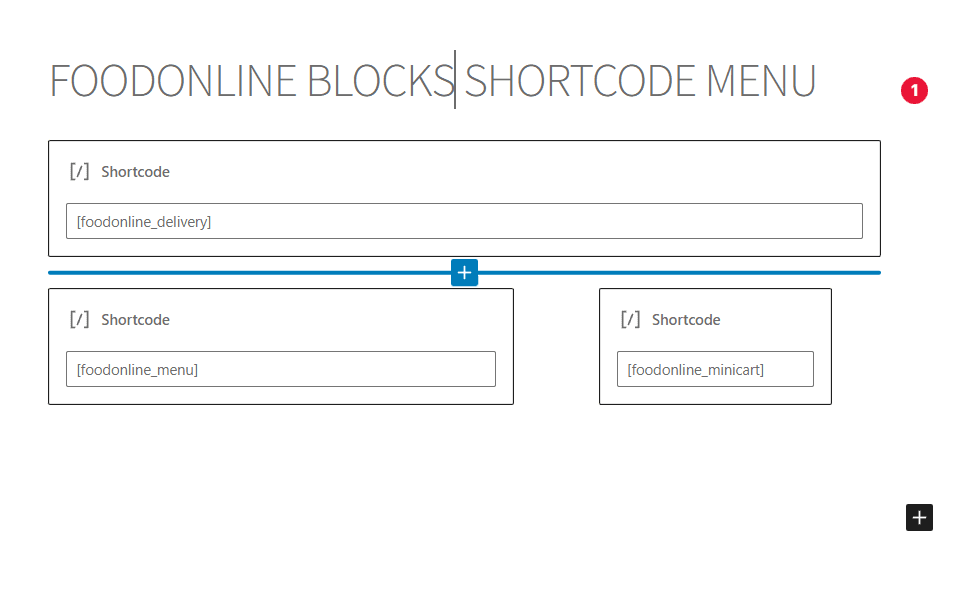
Elementor layout
Section titled “Elementor layout”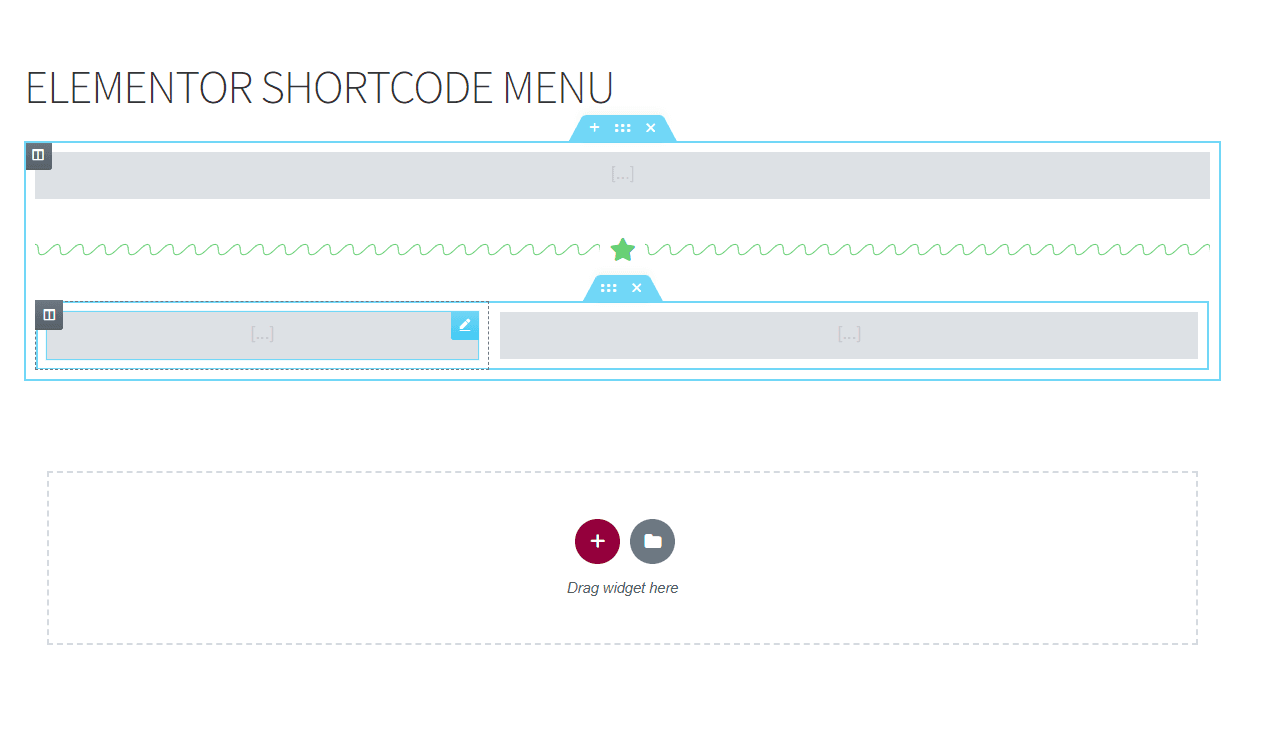
[foodonline_delivery]
Section titled “[foodonline_delivery]”To only use the topbar delivery feature on another page (then the shop page) use the shortcode [foodonline_delivery].
For example, you can use it with the WooCommerce shortcode “products” to display products with a classic look as seen in the figure below.
When using this shortcode it might be good to disable the delivery address/postcode validation requirement. This can be done at the “Advanced” settings tab.
Settings for the delivery feature will by default be according to the settings page but can be overridden with shortcode attributes.
_delivery_mode_ – toggle_switch, dropdown, only_pickup, only_delivery, disable
dropdown_choices – pickup, delivery, eathere
_default_delivery_mode_ – pickup, delivery, eathere_selection_mandatory_ – yes, no
_validation_ – postcode, address, none_start_page_ – yes, no_message_format_ – print, popup

[foodonline_timepicker]
Section titled “[foodonline_timepicker]”The shortcode [foodonline_timepicker] inserts the time picker on a custom place. This can be useful when using a custom checkout page.
[foodonline_menu]
Section titled “[foodonline_menu]”The shortcode [foodonline_menu] inserts a pure menu without any bars or carts in a custom place. It is possible to use the same arguments as those of [foodonline], see above.
[foodonline_minicart]
Section titled “[foodonline_minicart]”The shortcode [foodonline_minicart] inserts the mini cart in a custom place. The cart appearance will follow the settings of the usual Food Online minicart.
Order Time Management
Section titled “Order Time Management”This section lets you calculate an approximate time for an order to be ready.
Fixed preparation time
Set a fixed time in minutes for preparing a single order.
Dynamic preparation time
Set preparation time dynamically either per order:
- Preperation time will grab the item with the highest preparation time in the current cart
or per order item:
- Preparation time will be the aggregated time of the items in the current cart
Extra time per processing order
Set additional time in minutes per order or item already processing. The quantity of order or order items with the status “Processing” will be counted and multiplied with this time.
Use Order or Items?
Here you can choose to calculate extra time per processing order or processing item.
Choose Categories to Include
Select product categories to include when counting the processing items. Only order items belonging to at least one of the selected product categories will be added to the extra time.
Calculate time until ready for pickup?
How do you want to calculate the time until a pickup order or a default ( delivery feature disabled ) order is ready?
- None
- By preparation time - The calculated preparation will be used
- By preparation time & extra time - The sum of preparation time and extra time per processing order will be used
**
Time until ready for Eat at Restaurant?**
How do you want to calculate the time until a eat at restaurant order is ready?
- By preparation time - The calculated preparation will be used
- By preparation time & extra time - The sum of preparation time and extra time per processing order will be used
Calculate time until delivery?
Set how the time, until a delivery order can be delivered, will be calculated.
- None
- By preparation time - The calculated preparation will be used
- By preparation time & extra time - The sum of preparation time and extra time per processing order will be used
- By preparation time & shipping time - The sum of preparation time and shipping time will be used
- By preparation time & extra time & shipping time - The sum of the preparation time, extra time per processing order, and the shipping time will be used
Set shipping time
Choose how the shipping time will be calculated.
- None
- Fixed shipping time - the shipping time will be fixed according to the option below, “Fixed Shipping time”
- Calculate shipping time - the shipping time will be calculated with Google Maps API. Google will calculate the time to travel between the store address and the given delivery address.
Fixed shipping time
Set a fixed time in minutes for a delivery order.
Set vehicle
Select a vehicle type that will be used to calculate shipping time with Google. The selection will also reflect the icon shown with the time.
- By car or truck
- By bicycle
The order times can be used to postpone the Time Picker times. More information about this can be found in the section below.
If you check the option Show order times on the Menu page? the calculated order times will be shown on the menu page depending on the type of order.
Delivery Date & Time Picker
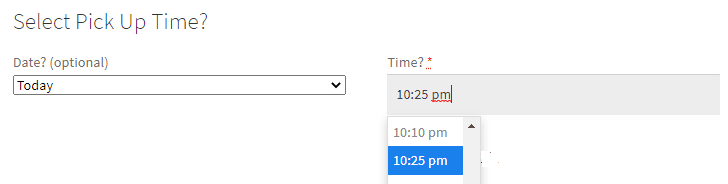
Section titled “Delivery Date & Time Picker”The Time Picker feature able to let the customer choose the time for when to pick up an order or when to get an order delivered. The time picker will be inserted at the checkout page and the selected time will be attached to the order data and will be available in order emails and admin order pages.
It is also possible to postpone the first time slot available with the calculated order time from the “Order Time Management” tab. If time slots are chosen to be postponed with extra time, it is possible to decide how many minutes before its time slot a processing order will be included in the postponement.
If you have a limit on how many orders or how many product items of a certain category you can handle in a single time slot there is an option to set this limit.
The times available for selection are decided by time picker schedules from the “Availability Schedules” settings tab, and by a chosen time step.
A delivery mode needs to be enabled in the “Delivery Features “ tab. The Time Picker is only active together with a delivery mode such as “Delivery” or “Pick Up”.
Availability Schedules
Section titled “Availability Schedules”The availability schedule feature makes it possible to add schedules for certain product tags or categories when using the Time Picker. If the cart contains any product of the selected category or tag, the available time slots will be according to this schedule.
If a schedule is added for a category or tag for a specific weekday, all other weekdays are disabled from the time picker for that category or tag. So it is mandatory to add a schedule for all weekdays that are meant to be activated.
It is also possible to add schedules for different delivery modes of the Delivery Dropdown Selector.
When using “Place Order / Menu by Mode” you can schedule when it is possible to place an order at checkout and which categories to be shown for the different delivery modes. To show different categories according to the schedules, Menu by Mode is also needed to be activated in the Delivery Features settings section.
 Important! Availability schedule categories and tags work as an AND condition if both are set for a schedule × Dismiss this alert.
Menu Category Sorting
Section titled “Menu Category Sorting”Click the setting tab called Menu Category Sorting and you will be able to choose which categories to show in the Menu on the shop page. And you will be able to sort among the categories to decide their order.
This setting does not affect the Menu when using the shortcode [foodonline] or [foodonline2]. When using the shortcodes, category selection, and sorting can be specified in the shortcode as arguments.
Advanced Settings
Section titled “Advanced Settings”Lazy Load Menu Images
Section titled “Lazy Load Menu Images”If the Menu contains many items with images, page load will be faster if images are loaded when they appear on the screen (Lazy Loading).
Javascript Loading Overlay
Section titled “Javascript Loading Overlay”Show an overlay while loading content with javascript
Do Not Restrict Google Autocomplete to IP-located country
Section titled “Do Not Restrict Google Autocomplete to IP-located country”By default, the autocomplete address suggestions will only be from the user-located country. With this option, it is possible to allow address suggestions from the whole world.
Geolocate user for improved Autocomplete suggestions
Section titled “Geolocate user for improved Autocomplete suggestions”With this option enabled, the browser will try to geolocate the user and thereby improve address suggestions by searching for addresses in the nearby region.
Force Enqueue Google Maps JS & Deactivate Google Maps JS
Section titled “Force Enqueue Google Maps JS & Deactivate Google Maps JS”These settings are for testing purposes by advanced users and might be helpful if other Themes and plugins also load Google scripts.
Show error messages at checkout
Section titled “Show error messages at checkout”Enable WooCommerce error messages at the checkout page.
Delete Settings
Section titled “Delete Settings”Enable this option to delete the plugin’s settings in the database on plugin removal. Make sure to not use the option when upgrading to a new version.
Product Sorting by Title
Section titled “Product Sorting by Title”Override WooCommerce and sort products by title on the shop page?
Fallback Product Popup Loading
Section titled “Fallback Product Popup Loading”Choose if to load entire product popup content at page load. As standard, the content is loaded when the popup opens which reduces the page load time.
Multiple Shorcode Instances
Section titled “Multiple Shorcode Instances”These settings are for testing purposes by advanced users and allow multiple shortcode instances? (not recommended)
Disable delivery address/postcode validation requirement
Section titled “Disable delivery address/postcode validation requirement”By default, a delivery address/postcode needs to be validated and approved before proceeding to checkout. With this requirement disabled it´s always possible to proceed to the checkout page and the potentially available shipping methods will there be shown.
WooCommerce REST API
Section titled “WooCommerce REST API”WooCommerce REST API brings the possibility that via GET and PUT requests read or update Food Online options and order meta values such as chosen pick up times, delivery times, delivery modes, etc.
First, read this documentation for how to make the basic WooCommerce REST API configuration.
Update an option
Section titled “Update an option”Food Online setting options can be updated with a PUT request described in the WooCommerce REST API documentation. The <group_id> should be fdoep and the
The option id can be found in the complete options reference.
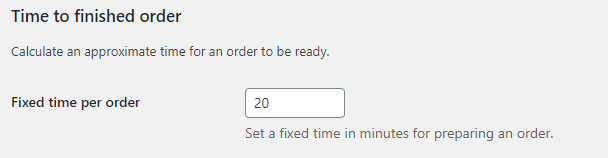
Example. If you would like to change the time for preparing an order (the option to the right) from 20 to 30 minutes a request should be like below where the option id is fdoep_pickup_fixed.
PUT Request updating an option
Section titled “PUT Request updating an option”https://yourdomain.com/wp-json/wc/v3/settings/fdoep/fdoe_pickup_fixed?value=30Update an orders meta data
Section titled “Update an orders meta data”Food Online stores certain information about an order as meta_data. The data can be read or updated with GET or PUT requests according to the to WooCommerce REST API documentation.
The Food Online order metadata are
- Delivery Mode - fdoe_delivery_mode - (string) [ delivery, pickup, eathere ]
- Picked Time from Timepicker - fdoe_picked_time - (string) [ date & time ]
- Billing Table - _billing_table - (string) [ checkout billing table number from “Eat at Restauran” mode ]
PUT Request updating the delivery mode
Section titled “PUT Request updating the delivery mode”Example. In this example, we are changing the selected delivery mode to Pick Up for an order with order id 4705. We are using an HTTP PUT Request and a raw JSON object.
https://yourdomain.com/wp-json/wc/v3/orders/4705JSON raw data
"meta_data": [{ "key": "fdoe_delivery_mode", "value": "pickup"} ]PHP Filters
Section titled “PHP Filters” // Display totals when using YITH product Add-Onsadd_filter( 'fdoe_activate_yith_totals',true);External Compatibility
Section titled “External Compatibility”- The official WooCommerce product add-on plugin.
YITH WooCommerce Product Add-Ons
- A popular independent product add-on plugin that comes as a free and paid premium version.
- Add the filter ‘fdoe_activate_yith_totals’ and set it to true to display totals.
- Loyalize customers with an effective points-based loyalty program and instant rewards.
Is it possible to define the delivery area through a drawn zone?
Yes, Food Online is compatible with the free plugin Shipping Zones by Drawing.
**Does this work with WooCommerce Add-Ons?
**
Yes, versions from 1.6 it´s compatible with WooCommere Add-ons.
You could then offer toppings, side dishes and more.
Is support included in the price?
Yes, the price includes six month support and updates.
Why does not product sorting work when using shortcode [foodonline]?
There seem to be a cache issue, please read this topic.
Get the plugin
Section titled “Get the plugin”Buy Food Online Premium on arosoft.se →
Downloads and licenses are in My account. Questions? Use Contact & support.